How to Install n8n: Local, Docker, Ubuntu & Windows
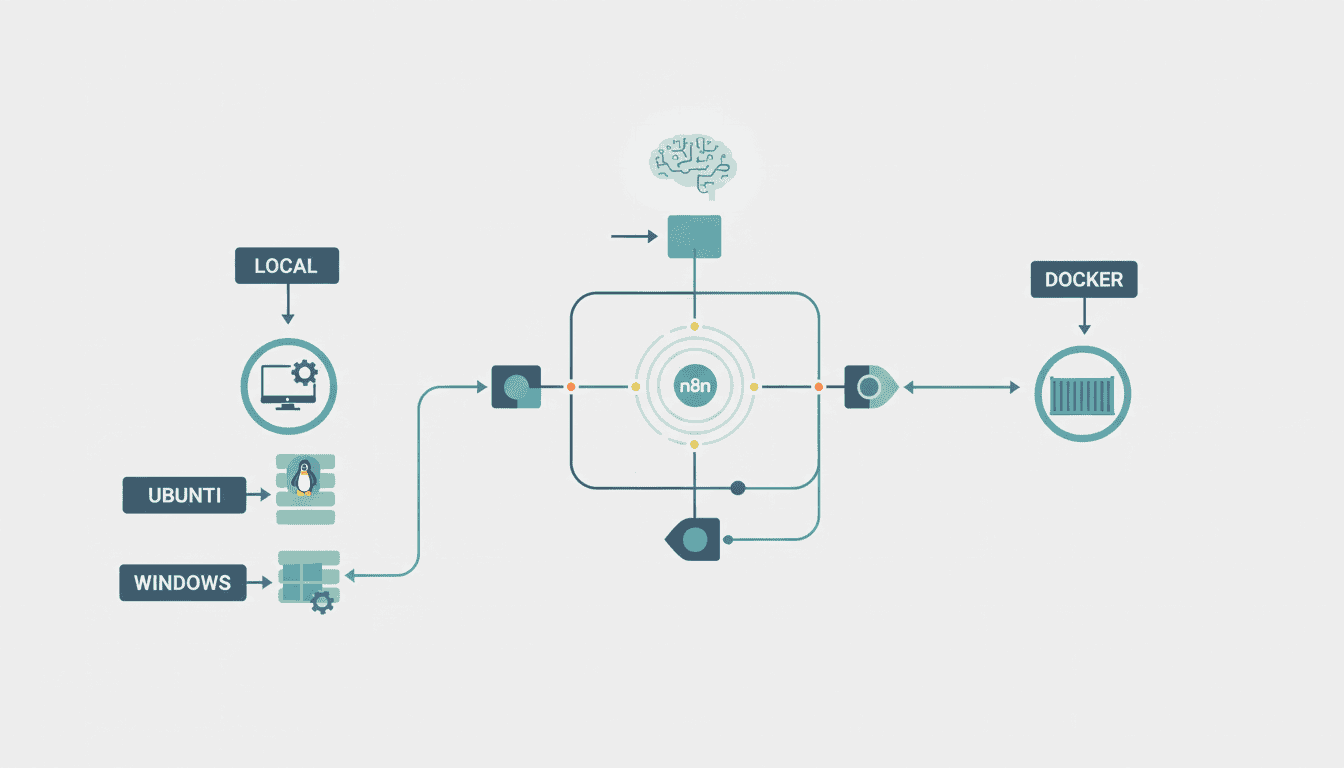
n8n is a powerful workflow automation tool that allows you to connect various services and applications without coding knowledge. Whether you’re a developer, IT professional, or automation enthusiast, installing n8n on your preferred platform is the first step to building powerful automation workflows. This guide covers comprehensive installation methods for n8n across multiple platforms including local installation, Ubuntu, Windows, and Docker.
With its node-based approach, n8n makes it easy to automate repetitive tasks and integrate different services. Let’s explore the various ways to install n8n so you can start creating workflows right away.
How to Install n8n Locally
Installing n8n locally on your machine is one of the quickest ways to get started with the platform. A local installation is ideal for testing, development, or personal use cases where you don’t need a dedicated server.
System Requirements for Local Installation
Before installing n8n locally, ensure your system meets these minimum requirements:
- Node.js version 16 or newer
- npm version 7 or newer
- At least 2GB of RAM (4GB recommended)
- 2GB of free disk space
While n8n can run on systems with lower specifications, these recommendations ensure smooth operation, especially when dealing with complex workflows or multiple concurrent executions.
Step-by-Step Guide to Local Installation of n8n
Follow these steps to install n8n locally on your machine:
- Open your terminal or command prompt
- Check your Node.js and npm versions:
node -v
npm -v
- Install n8n globally using npm:
npm install n8n -g
- Start n8n:
n8n
- Access the n8n editor by opening your browser and navigating to
http://localhost:5678
If you want to run n8n in the background, you can use:
n8n start
This command will keep n8n running even after closing your terminal window. To stop the service, use n8n stop.
How to Install n8n on Ubuntu
Ubuntu is a popular Linux distribution for hosting services like n8n. Installing n8n on Ubuntu provides a stable environment for running your workflows in production or development settings.
Prerequisites for Ubuntu Installation
Before installing n8n on Ubuntu, make sure you have the following prerequisites:
- Ubuntu 18.04 LTS or newer
- Root or sudo access to your server
- A minimum of 1GB RAM (2GB recommended)
- Basic knowledge of terminal commands
You’ll also need to install Node.js and npm if they’re not already installed on your system.
Complete Installation Procedure on Ubuntu
Follow these steps to install n8n on your Ubuntu server:
- Update your package index:
sudo apt update
- Install Node.js and npm:
sudo apt install -y nodejs npm
- Install n8n globally:
sudo npm install n8n -g
- Start n8n:
n8n
For a production environment, you might want to run n8n as a service so it automatically restarts if the server reboots. You can set up a systemd service with the following steps:
- Create a systemd service file:
sudo nano /etc/systemd/system/n8n.service
- Add the following content:
[Unit]
Description=n8n
After=network.target

[Service]
Type=simple
User=YOUR_USERNAME
ExecStart=/usr/local/bin/n8n start
Restart=on-failure

[Install]
WantedBy=multi-user.target
- Replace YOUR_USERNAME with your actual username
- Enable and start the service:
sudo systemctl enable n8n
sudo systemctl start n8n
How to Install n8n on Windows
Windows users can also enjoy the benefits of n8n for workflow automation. The installation process is straightforward using npm, which is the package manager for Node.js.
System Requirements for Windows Installation
Before proceeding with the installation, ensure your Windows system meets these requirements:
- Windows 10 or Windows Server 2016 or newer
- Node.js version 16 or newer
- npm version 7 or newer
- At least 2GB of RAM
- Administrative privileges (for installation)
Some workflows may require additional system resources depending on their complexity and execution frequency.
Step-by-Step Installation Process for Windows
Follow these steps to install n8n on your Windows machine:
- Download and install Node.js from the official website if you haven’t already
- Open Command Prompt or PowerShell as Administrator
- Install n8n globally using npm:
npm install n8n -g
- Start n8n:
n8n
- Access the n8n editor by opening your browser and navigating to
http://localhost:5678
If you want n8n to start automatically when your computer boots, you can create a Windows scheduled task:
- Open Task Scheduler
- Create a new task and set it to run at startup
- Add an action to run
n8n.cmd start(usually found in C:\Users\[YourUsername]\AppData\Roaming\npm) - Set to run whether the user is logged in or not for true background execution
Install n8n Using Docker
Docker provides a convenient way to run n8n in a containerized environment. This method is popular for its consistency across different operating systems and ease of deployment.
Requirements for Docker Installation
Before installing n8n with Docker, ensure you have:
- Docker installed on your system
- Docker Compose (optional but recommended)
- Basic understanding of Docker commands
- At least 2GB of available RAM for Docker
Docker installation is platform-agnostic, which means you can use these instructions on Linux, macOS, or Windows as long as Docker is properly installed.
Detailed Guide to Install n8n with Docker
There are two main approaches to install n8n using Docker: using a simple Docker run command or using Docker Compose for more advanced setups.
Using a simple Docker command:
docker run -it --rm \
  --name n8n \
  -p 5678:5678 \
  -v ~/.n8n:/home/node/.n8n \
  n8nio/n8n
For a more persistent setup with Docker Compose, create a docker-compose.yml file with the following content:
version: '3'
services:
  n8n:
    image: n8nio/n8n
    restart: always
    ports:
      - "5678:5678"
    volumes:
      - ~/.n8n:/home/node/.n8n
    environment:
      - N8N_PROTOCOL=http
      - N8N_HOST=localhost
      - N8N_PORT=5678
      # Uncomment to enable basic auth
      # - N8N_BASIC_AUTH_ACTIVE=true
      # - N8N_BASIC_AUTH_USER=user
      # - N8N_BASIC_AUTH_PASSWORD=password
Then run:
docker-compose up -d
Resources
Here are some valuable resources to help you get the most out of n8n after installation:
- Official n8n Documentation – Comprehensive guides and references
- n8n Community Forum – Get help and share workflows
- n8n GitHub Repository – Source code and issue tracking
- n8n YouTube Channel – Video tutorials and demos
Conclusion
Installing n8n offers you a powerful workflow automation tool that can save time and streamline your processes. Whether you choose to install n8n locally, on Ubuntu, Windows, or using Docker, each method has its advantages depending on your use case and environment.
For development and testing, a local installation might be the quickest way to get started. For production environments, Ubuntu or Docker installations provide more robust options with better persistence and reliability. Windows users can enjoy the full n8n experience directly on their preferred operating system.
Once installed, take advantage of n8n’s intuitive interface to create workflows connecting your favorite apps and services without writing complex code. The node-based visual editor makes it accessible even to those without programming experience.
Start building your first workflow today and discover the power of automation with n8n!
Frequently Asked Questions
What is n8n and why should I use it?
n8n is an open-source workflow automation tool that allows you to connect different services and applications to automate tasks without writing code. It’s similar to Zapier or Integromat but can be self-hosted, offering more control, privacy, and customization options.
Can I run n8n on a Raspberry Pi?
Yes, n8n can run on a Raspberry Pi. For best performance, use a Raspberry Pi 4 with at least 2GB of RAM. You can install it using the Docker method or direct installation on Raspberry Pi OS (Debian-based).
How do I update my n8n installation?
To update n8n, use the same method you used for installation. For npm installations, run npm update -g n8n. For Docker, pull the latest image with docker pull n8nio/n8n and restart your container.
Is n8n free to use?
Yes, n8n is free and open-source. You can self-host it without cost. There’s also n8n.cloud, a paid hosting service if you prefer not to manage your own installation.
How do I backup my n8n workflows?
n8n stores its data in a local database. For npm installations, backup the ~/.n8n directory. For Docker installations, ensure you’re using a volume mount (like -v ~/.n8n:/home/node/.n8n) and backup that directory. You can also export workflows individually from the n8n interface.