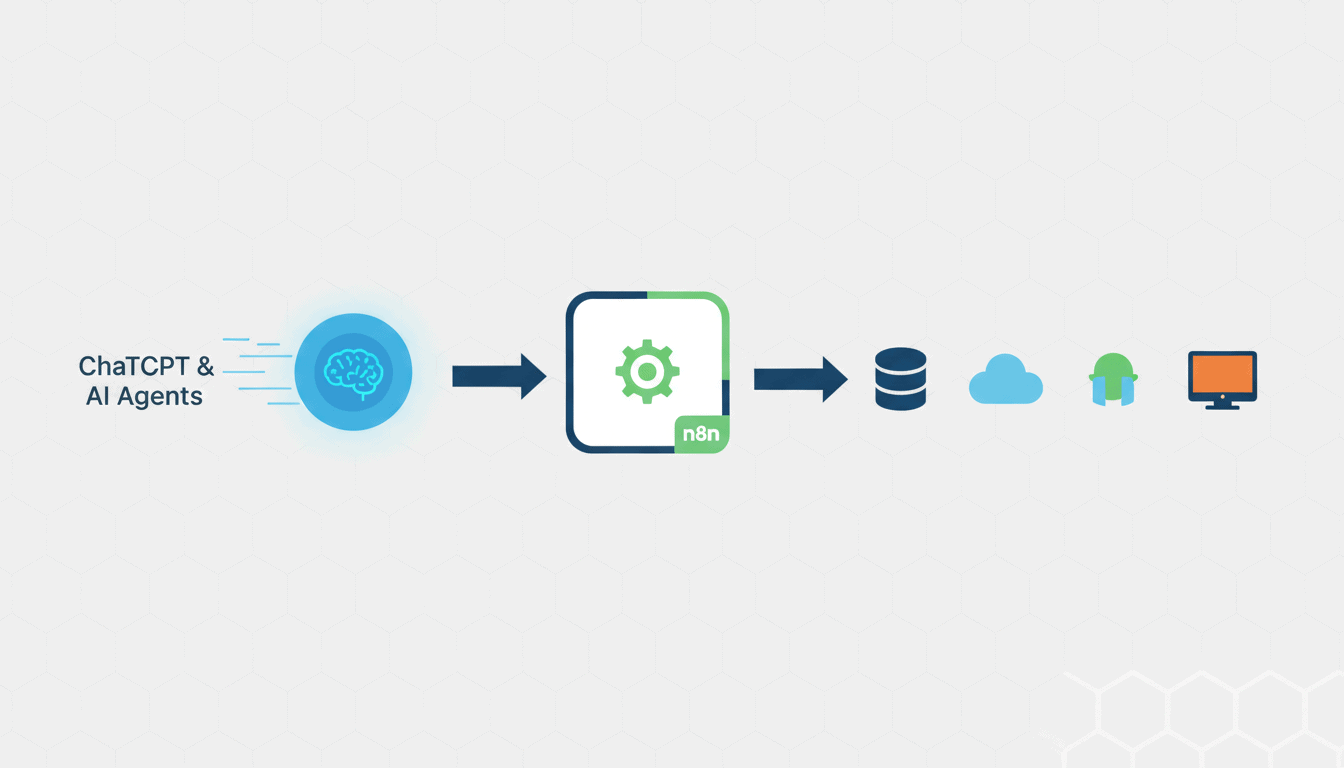
How to Use ChatGPT & AI Agents in n8n
Integrating AI capabilities into your automation workflows can transform how your business processes information and responds to events. With n8n’s powerful workflow automation platform, you can harness ChatGPT and create AI agents that perform complex tasks with minimal human intervention. This guide will walk you through everything you need to know about using ChatGPT models and setting up AI agents in n8n, from basic installation to advanced workflow techniques.
Setting Up n8n for ChatGPT Integration
Before you can leverage the power of ChatGPT in your workflows, you’ll need to properly set up n8n and connect it with OpenAI’s services. The process is straightforward but requires attention to detail to ensure everything works smoothly.
Installing n8n
To begin using n8n with ChatGPT models, you first need to install the n8n platform. There are several methods to install n8n depending on your technical preferences:
- NPM Installation: The simplest method is using npm with the command
npm install n8n -g. - Docker: For container-based deployments, use
docker run -it --rm --name n8n -p 5678:5678 n8nio/n8n. - Desktop Application: Download the desktop app from the n8n website for a more user-friendly experience.
After installation, start n8n by running n8n start in your terminal or launching the desktop application. The n8n editor will be accessible at http://localhost:5678.
Connecting n8n with OpenAI
To use ChatGPT in n8n, you need to establish a connection with OpenAI’s API:
- Sign up for an OpenAI account and obtain an API key from the OpenAI dashboard.
- In n8n, click on “Credentials” in the main menu.
- Select “Add Credential” and choose “OpenAI API” from the list.
- Enter your API key and give this credential a memorable name.
- Save your credential configuration.
Once connected, you’ll be able to access various ChatGPT models through the OpenAI node in n8n. This integration is essential for building workflows that leverage ChatGPT’s capabilities.
Creating an AI Agent in n8n
An AI agent in n8n is essentially a workflow that uses artificial intelligence to perform specific tasks autonomously. Creating an effective n8n AI agent requires careful planning and clear objectives.
Defining the Agent’s Purpose
Before building your AI agent, clearly define what you want it to accomplish:
- Task Automation: Determine which repetitive tasks the agent should handle.
- Data Processing: Decide what kind of data the agent will process and what transformations it should perform.
- Decision Making: Establish the criteria for any decisions the agent needs to make.
- Communication: Define how the agent will communicate results or interact with users.
The more specific your agent’s purpose, the more effective it will be. For example, you might create an agent that monitors customer support emails, categorizes issues using ChatGPT, and routes them to the appropriate department.
Choosing Triggers for the Agent
Every n8n AI agent needs a trigger that initiates its workflow:
| Trigger Type | Use Case |
| Webhook | Activate the agent when data is received from external systems |
| Schedule | Run the agent at predetermined intervals |
| Event | Trigger the agent when specific events occur in connected systems |
| Manual | Start the agent on demand through user action |
The trigger you choose should align with how and when you want the agent to perform its tasks. For instance, if you’re building a content generation agent, you might use a scheduled trigger to create new content daily or a webhook trigger that activates when users request specific information.
Building ChatGPT Workflows in n8n
After setting up n8n and defining your AI agent’s purpose, it’s time to build workflows that leverage ChatGPT’s capabilities. Learning how to use ChatGPT models in n8n is essential for creating effective AI-powered automations.
Designing Your First Workflow
To create a basic ChatGPT workflow in n8n:
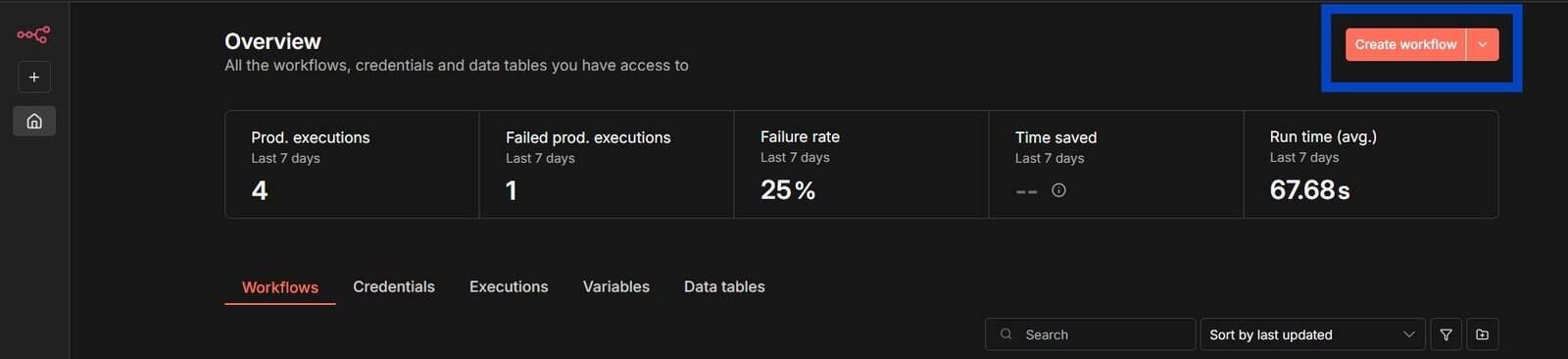
- Start a new workflow in the n8n editor.
- Add your chosen trigger node (e.g., Webhook, Schedule).
- Add an OpenAI node and connect it to your trigger.
- Configure the OpenAI node by selecting your credentials and choosing the appropriate ChatGPT model (e.g., gpt-3.5-turbo, gpt-4).
- Define your prompt in the “Prompt” field. You can use variables from previous nodes using the expression editor.
- Add output nodes to handle ChatGPT’s response (e.g., Send Email, Slack, Telegram).
A simple example would be a workflow that monitors a support email inbox, sends customer queries to ChatGPT for analysis, and then routes the ticket to the appropriate department based on ChatGPT’s categorization.
Advanced Workflow Techniques
Once you’re comfortable with basic n8n AI agent workflow examples, you can implement more sophisticated techniques:
- Chained Prompts: Use multiple OpenAI nodes in sequence, where each node refines the output of the previous one.
- Memory Implementation: Store conversation history in variables or databases to give your agent context awareness.
- Conditional Paths: Create different workflow paths based on ChatGPT’s responses using the “IF” node.
- Integration with Other APIs: Combine ChatGPT with other services like Google Sheets, CRMs, or custom APIs.
- Error Handling: Implement retry mechanisms and fallbacks for when the OpenAI API has issues.
An advanced example of how to use the ChatGPT model in n8n might involve a content creation workflow that generates ideas, outlines, drafts content, and then automatically schedules posts to social media platforms based on optimal posting times.
Testing and Debugging Your AI Agent
Before deploying your AI agent for regular use, thorough testing is essential to ensure it works reliably and produces the expected results.
Running Tests on Your Workflows
To test your ChatGPT workflows in n8n:
- Use the “Execute Workflow” button to run the entire workflow manually.
- Check the execution data for each node to see how information flows through the workflow.
- Test with various inputs to ensure your agent handles different scenarios appropriately.
- Use the “Debug” mode to see detailed logs of what’s happening at each step.
- Create test cases for edge cases and unexpected inputs.
Regular testing helps identify potential issues before they affect your production processes and ensures your AI agent functions as intended under various conditions.
Identifying and Fixing Errors
Common issues when working with ChatGPT in n8n include:
- API Rate Limiting: OpenAI imposes rate limits that can cause failures during heavy usage.
- Token Limitations: ChatGPT models have maximum token limits for combined prompts and responses.
- Unexpected Responses: Sometimes ChatGPT might generate responses that don’t align with your expectations.
- Connection Issues: Network problems can interrupt communication with the OpenAI API.
To address these issues, implement error handling in your workflows, add retry logic for transient errors, and use the “Split In Batches” node to break up large processing tasks. The execution history in n8n also provides valuable information for diagnosing and resolving problems.
Resources
To further enhance your n8n and ChatGPT integration skills, explore these resources:
- Official n8n Documentation – Comprehensive guides for using n8n
- OpenAI API Documentation – Detailed information about ChatGPT and other OpenAI models
- n8n Community Forum – Connect with other users and share workflow templates
- n8n YouTube Channel – Video tutorials and workflow demonstrations
- n8n GitHub Repository – For those interested in the technical aspects or contributing
Conclusion
Integrating ChatGPT and AI agents into your n8n workflows opens up powerful possibilities for automation, content creation, data analysis, and customer engagement. By following the steps outlined in this guide, you can create sophisticated AI-powered systems that save time, improve consistency, and unlock new capabilities for your business or personal projects.
Start with simple workflows to get comfortable with how to use ChatGPT models in n8n, then gradually expand to more complex AI agents as your confidence grows. The combination of n8n’s visual workflow builder and ChatGPT’s intelligence creates a flexible foundation for almost any automation challenge.
Remember that effective AI agents require ongoing refinement. Monitor performance, gather feedback, and continuously improve your workflows to get the most value from this powerful integration.
Frequently Asked Questions
What is the difference between ChatGPT and other AI models in n8n?
ChatGPT is specifically designed for conversational AI and natural language processing tasks, while n8n supports other AI models for different purposes such as image generation (DALL-E), sentiment analysis, or machine learning models through various integrations. ChatGPT excels at understanding context and generating human-like text responses.
Can I use ChatGPT in n8n without coding experience?
Yes, n8n’s visual workflow builder makes it possible to create ChatGPT-powered workflows without extensive coding. Basic knowledge of JSON and expressions is helpful but not required for simple implementations. The drag-and-drop interface and pre-built nodes handle most of the technical complexity.
How much does it cost to use ChatGPT with n8n?
N8n itself offers both free and paid plans, while OpenAI charges separately for API usage based on the number of tokens processed. Costs will vary depending on your workflow complexity, frequency of execution, and the specific ChatGPT model you use. GPT-4 is more expensive than GPT-3.5, but offers more advanced capabilities.
Can I run n8n with ChatGPT locally for privacy reasons?
You can run n8n locally or on your own servers for privacy, but ChatGPT itself requires API calls to OpenAI’s servers. If you have strict data privacy requirements, you’ll need to carefully design your workflows to avoid sending sensitive information to the OpenAI API or explore alternative local language models.
How can I make my ChatGPT agents in n8n more efficient?
To improve efficiency, optimize your prompts to be clear and concise, implement caching for repeated queries, use the most appropriate model for your needs (not always the most powerful one), and design workflows to batch process data when possible. Also, consider implementing rate limiting to manage API usage costs.