How to Automate Google Sheets with n8n
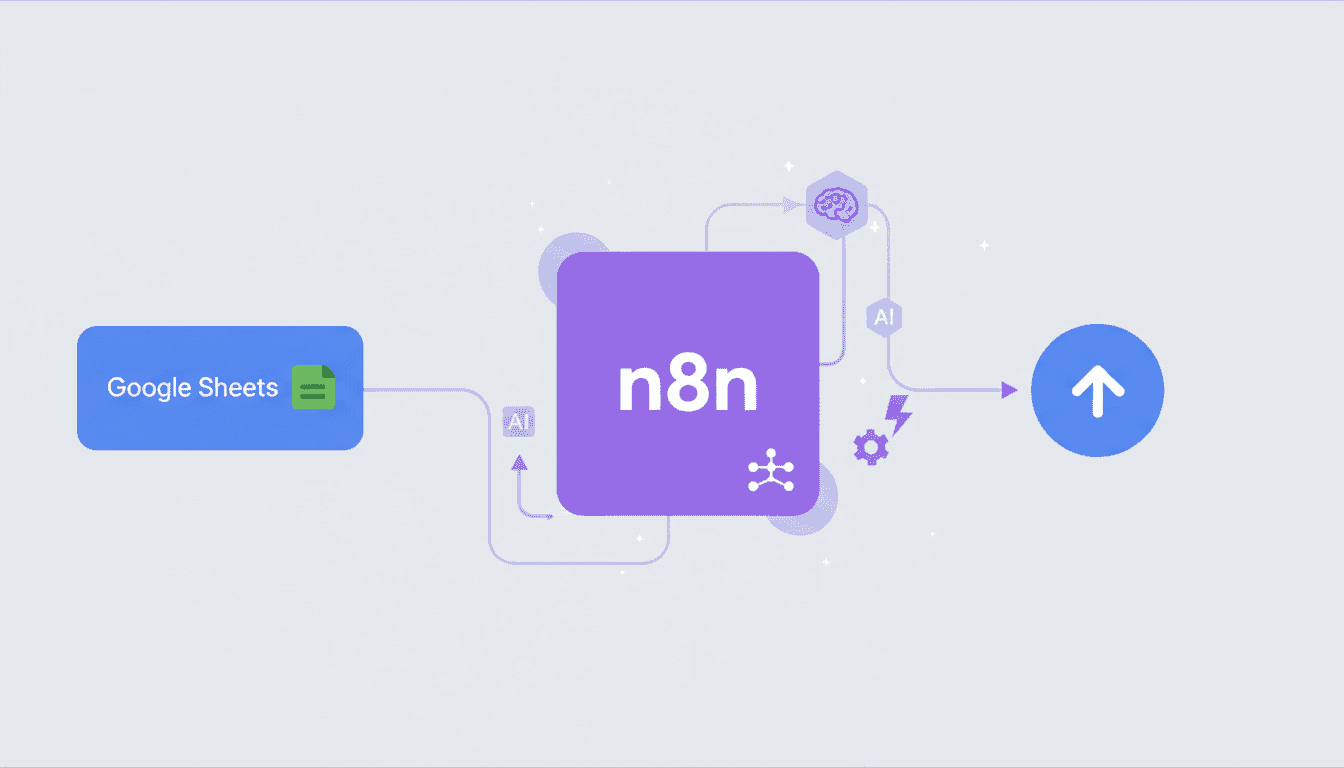
Automating Google Sheets can transform your data management processes by eliminating repetitive tasks, reducing human error, and saving valuable time. With n8n Google Sheets automation, you can create powerful workflows that automatically update spreadsheets, sync data between applications, and trigger actions based on spreadsheet changes. This comprehensive guide will walk you through setting up n8n with Google Sheets and creating effective automation workflows that streamline your data processes.
Setting Up n8n with Google Sheets
Before you can start automating your Google Sheets, you’ll need to set up n8n and connect it to your Google account. This section covers the initial setup process to get your automation journey started.
Creating an n8n Account
To begin using n8n for Google Sheets automation, you’ll need to create an n8n account and install the platform. Here’s how to get started:
- Choose your n8n deployment option: You can use n8n Cloud (hosted solution) or self-host n8n on your own server.
- Sign up for an account: Visit the n8n website and create your account if using the cloud version.
- Installation: If self-hosting, follow the installation instructions for your operating system. n8n can be installed using npm, Docker, or desktop applications.
- Access the n8n editor: Once installed, access the n8n workflow editor through your browser.
Connecting n8n to Google Sheets
Once your n8n account is ready, you’ll need to establish a connection with Google Sheets using OAuth authentication. This allows n8n to securely interact with your spreadsheets:
- Add Google Sheets node: In the n8n workflow editor, search for “Google Sheets” in the nodes panel and add it to your workflow.
- Create credentials: Click on “Create new” in the credentials dropdown.
- OAuth setup: You’ll be prompted to connect to your Google account. Follow the authorization process to grant n8n permission to access your Google Sheets.
- Test connection: After authentication, test the connection to ensure n8n can properly access your Google Sheets documents.
Setting up the n8n Google Sheets trigger correctly is crucial for creating automated workflows. Make sure to specify the correct spreadsheet ID and sheet name when configuring the connection to avoid errors in your automation.
Creating a Google Sheets Workflow in n8n
After connecting n8n to Google Sheets, you can start building workflows that automate your spreadsheet operations. Let’s explore how to create effective Google Sheets workflows in n8n.
Using n8n to Write Data to Google Sheets
Writing data to Google Sheets automatically is one of the most powerful features of n8n Google Sheets automation. Here’s how to set it up:
- Add a trigger node: Start your workflow with a trigger such as a Webhook, Schedule, or another app integration that will initiate the workflow.
- Process the data: Use Function nodes to format or transform data as needed before writing to Google Sheets.
- Configure Google Sheets node: Add a Google Sheets node and configure it to write data:
- Select “Update” or “Append” operation
- Specify the Spreadsheet ID and Sheet name
- Map incoming data to specific columns in your spreadsheet
| Operation | Use Case | Configuration Notes |
|---|---|---|
| Append | Adding new rows of data | Great for logs, form submissions, data collection |
| Update | Changing existing data | Requires row identifiers for accurate updates |
| Lookup | Finding existing data | Use before update operations to locate specific rows |
Setting Triggers for Google Sheets Automation
To make your workflows truly automated, you need to set up appropriate triggers that initiate the workflow when specific events occur. With n8n Google Sheets triggers, you can automate based on time or external events:
- Schedule trigger: Run your Google Sheets workflow at specific intervals, such as hourly, daily, or weekly.
- Webhook trigger: Execute your workflow when data is received through an HTTP endpoint.
- Form submission trigger: Update Google Sheets automatically when forms are submitted.
- Database trigger: Sync database records with Google Sheets.
The n8n Google Sheets trigger capabilities allow you to create responsive workflows that update your spreadsheets exactly when needed, without manual intervention.
Advanced Features for Automating Spreadsheets
Beyond basic data entry, n8n offers sophisticated features for automating spreadsheets in more complex scenarios.
Integrating Google Sheets with Other Applications
One of the most powerful aspects of using n8n for Google Sheets automation is the ability to connect your spreadsheets with other business applications:
- CRM integration: Sync customer data between your CRM and Google Sheets.
- Email marketing: Update email campaigns based on spreadsheet data or log campaign results back to sheets.
- Project management: Connect task management tools with Google Sheets for reporting.
- Custom APIs: Pull data from proprietary systems into Google Sheets for analysis.
- AI services: Enhance your spreadsheet data with AI agent workflows for advanced data processing and insights.
By using n8n as your integration platform, you can create multi-step workflows that move data seamlessly between Google Sheets and virtually any other system with an API.
Utilizing Filters and Functions in n8n Workflows
To create truly powerful spreadsheet automations, you can use n8n’s filtering and data manipulation capabilities:
- IF node: Create conditional logic in your workflows.
- Function node: Write custom JavaScript code to transform your data before it enters Google Sheets.
- Split In Batches node: Process large datasets efficiently.
- Merge node: Combine data from multiple sources before writing to Google Sheets.
These advanced features make it possible to automate spreadsheets with sophisticated business logic, rather than just simple data transfers.
Resources
To further develop your skills with n8n and Google Sheets automation, explore these additional resources.
Further Reading on n8n and Google Sheets Automation
- n8n Official Google Sheets Documentation
- n8n workflow examples for small businesses
- What is n8n – A comprehensive guide for beginners
- Google Sheets Automation Guide by Zapier
Community Forums and Support Channels for n8n
Get help and inspiration from other n8n users through these community resources:
- n8n Forum: The official n8n community is an excellent place to ask questions and share workflows.
- GitHub: Check out the n8n GitHub repository for the latest updates and to report issues.
- Reddit: The r/n8n subreddit hosts discussions about automation use cases.
- Discord: Join the n8n Discord server for real-time community support.
Conclusion
Automating Google Sheets with n8n opens up a world of possibilities for streamlining your data workflows. By setting up proper connections, designing effective workflows, and leveraging n8n’s advanced features, you can transform manual spreadsheet work into automated processes that save time and reduce errors.
Whether you’re looking to automatically log data from various sources, update records based on specific triggers, or create complex integrations between Google Sheets and other business applications, n8n provides the tools you need. The platform’s flexibility allows for simple automation for beginners, while offering advanced capabilities for power users who need more sophisticated workflows.
Start by implementing a simple automation, like automatically updating a Google Sheet based on form submissions, and gradually expand your workflow as you become more comfortable with the platform. You can even enhance your automation capabilities by integrating AI agents for small business use cases to make your spreadsheet automations even more powerful.
Frequently Asked Questions
Is n8n free to use with Google Sheets?
n8n offers both free and paid options. You can use the self-hosted version of n8n for free with Google Sheets, or opt for n8n Cloud with tiered pricing plans for more features and support.
Do I need coding knowledge to create Google Sheets automations in n8n?
No, you don’t need coding experience for basic Google Sheets automations in n8n. The visual workflow builder allows you to create automations without code. However, basic JavaScript knowledge can be helpful for more advanced data transformations using Function nodes.
Can n8n read and write to protected Google Sheets?
Yes, n8n can access protected Google Sheets as long as the Google account connected to n8n has appropriate permissions to access those spreadsheets.
How often can n8n update my Google Sheets?
n8n can update your Google Sheets as frequently as needed. You can set schedules for updates (e.g., every minute, hourly, daily) or trigger updates based on events in other systems.
Is there a limit to how much data I can process with n8n and Google Sheets?
While n8n itself doesn’t impose strict limits, Google Sheets has limitations on spreadsheet size (10 million cells maximum) and API rate limits. For very large datasets or high-frequency updates, consider implementing batching in your n8n workflows.
Can I use n8n to automate multiple Google Sheets at once?
Yes, you can create workflows in n8n that interact with multiple Google Sheets simultaneously, allowing you to copy data between sheets, consolidate information, or distribute data from a single source to multiple destination spreadsheets.