Automate Social Media Posts with n8n (Beginner Guide)
Social media management can be time-consuming, especially when you’re handling multiple platforms simultaneously. Fortunately, n8n offers a powerful solution to automate social media posts and streamline your content strategy. This beginner guide will walk you through setting up n8n for social media automation, allowing you to save time while maintaining a consistent online presence. Whether you’re a small business owner, a content creator, or a marketing professional, n8n’s workflow automation capabilities can transform how you approach social media management.
Setting Up n8n for Social Media Automation
Getting started with n8n social media automation requires some initial setup. This section covers the essential steps to create your account and connect your social media platforms to begin building automated workflows.
Creating Your n8n Account
Before diving into automation, you’ll need to set up your n8n account:
- Visit the official n8n website at n8n.io
- Click on the “Sign Up” or “Get Started” button
- Choose between n8n Cloud (hosted solution) or self-hosted version (requires technical knowledge)
- For beginners, n8n Cloud is recommended as it requires minimal technical setup
- Complete the registration process by providing your email and creating a password
- Verify your email address through the confirmation link sent to your inbox
- Once logged in, you’ll be directed to the n8n dashboard where you can create your first workflow
After setting up your account, you’ll need to familiarize yourself with the n8n interface. The main components include the workflow editor, node panel, and execution area. Take some time to explore these features before proceeding to connect your social media accounts.
Connecting Social Media Accounts
Now that your n8n account is ready, it’s time to connect your social media platforms:
- From your n8n dashboard, click “Create Workflow” to start a new automation
- In the node panel on the right side, search for the social media platform you want to connect
- For each platform, you’ll need to create credentials:
- Click on the node (e.g., “LinkedIn,” “Instagram,” “Twitter”)
- Select “Create new” in the credentials dropdown
- Follow the OAuth authentication process for each platform
- Approve the necessary permissions for n8n to post on your behalf
- Once authenticated, you’ll see a successful connection message
- Repeat this process for each social media platform you want to automate
Automating Instagram with n8n
Instagram is a highly visual platform requiring specific approaches for effective automation. Let’s explore how to automate Instagram with n8n for consistent and engaging content delivery.
Setting Up Instagram Automation Workflow
Creating an Instagram automation workflow in n8n involves several key components:
- Start a new workflow or open your existing workflow
- Add the Instagram node from the nodes panel
- Configure the Instagram node by selecting your previously created credentials
- Choose the operation you want to perform (typically “Create post” or “Create story”)
- Connect a trigger node (like Schedule or Webhook) to determine when the post should be published
- Add a “Function” node to format your content appropriately for Instagram
- Include necessary parameters:
- Caption text (including hashtags)
- Image or video URL
- Location information (optional)
- Tagging information (optional)
- Save and activate your workflow
Note that direct posting to Instagram through third-party applications has certain limitations due to Instagram’s API restrictions. You may need to use Meta Business Suite integration or explore alternative approaches for complete automation.
Using Triggers for Instagram Posts
Effective Instagram automation relies on properly configured triggers:
- Add a trigger node to your workflow (common options include):
- Schedule: For time-based posting
- Webhook: To trigger posts from external events
- Cron: For complex scheduling patterns
- Google Sheets: To pull content from a content calendar
- Configure your trigger parameters based on your posting strategy
- For Schedule triggers, set your desired posting frequency and times
- Connect your trigger to a Function node to prepare your content
- Use conditional nodes to filter and validate content before posting
Automating LinkedIn with n8n
LinkedIn requires a more professional approach to content, making automation particularly valuable for consistent branding and engagement. Let’s explore how to automate LinkedIn with n8n.
Creating LinkedIn Post Automation
Setting up LinkedIn automation in n8n is straightforward:
- In your n8n workflow, add the LinkedIn node from the nodes panel
- Connect your LinkedIn credentials (you’ll need to authorize n8n to post on your behalf)
- Configure the LinkedIn node:
- Select “Create post” as the operation
- Define the post content (text, images, URLs)
- Set visibility settings (connections only, public, etc.)
- Connect a data source node (like Google Sheets or Airtable) to pull your content
- Add a Function node to format your LinkedIn content professionally
- Test your workflow to ensure posts appear correctly on LinkedIn
LinkedIn’s API allows for more comprehensive automation compared to some other platforms, making it an excellent starting point for your n8n social media automation journey. This approach works well for both personal profiles and company pages.
Scheduling LinkedIn Posts with n8n
Effective scheduling ensures your LinkedIn content reaches your audience at optimal times:
- Add a Schedule node as your trigger
- Configure the schedule according to LinkedIn best practices:
- Weekday mornings (8-10 AM) for professional content
- Lunchtime (12-1 PM) for quick updates
- Early evening (5-6 PM) for end-of-day engagement
- Connect your schedule to a data source containing your LinkedIn content
- Use an IF node to validate content before posting
- Add error handling to notify you if a post fails to publish
- Activate the workflow to begin your automated LinkedIn posting schedule
| Content Type | Best Posting Time | Engagement Goal |
| Industry news | 8-9 AM, Tuesday-Thursday | Information sharing |
| Company updates | 10-11 AM, Monday-Friday | Brand awareness |
| Thought leadership | 5-6 PM, Tuesday & Wednesday | Professional positioning |
Implementing General Social Posting with n8n
Creating a unified approach to social posting across multiple platforms can significantly increase your efficiency. Here’s how to implement comprehensive social posting with n8n.
Designing Multi-Platform Posting Workflows
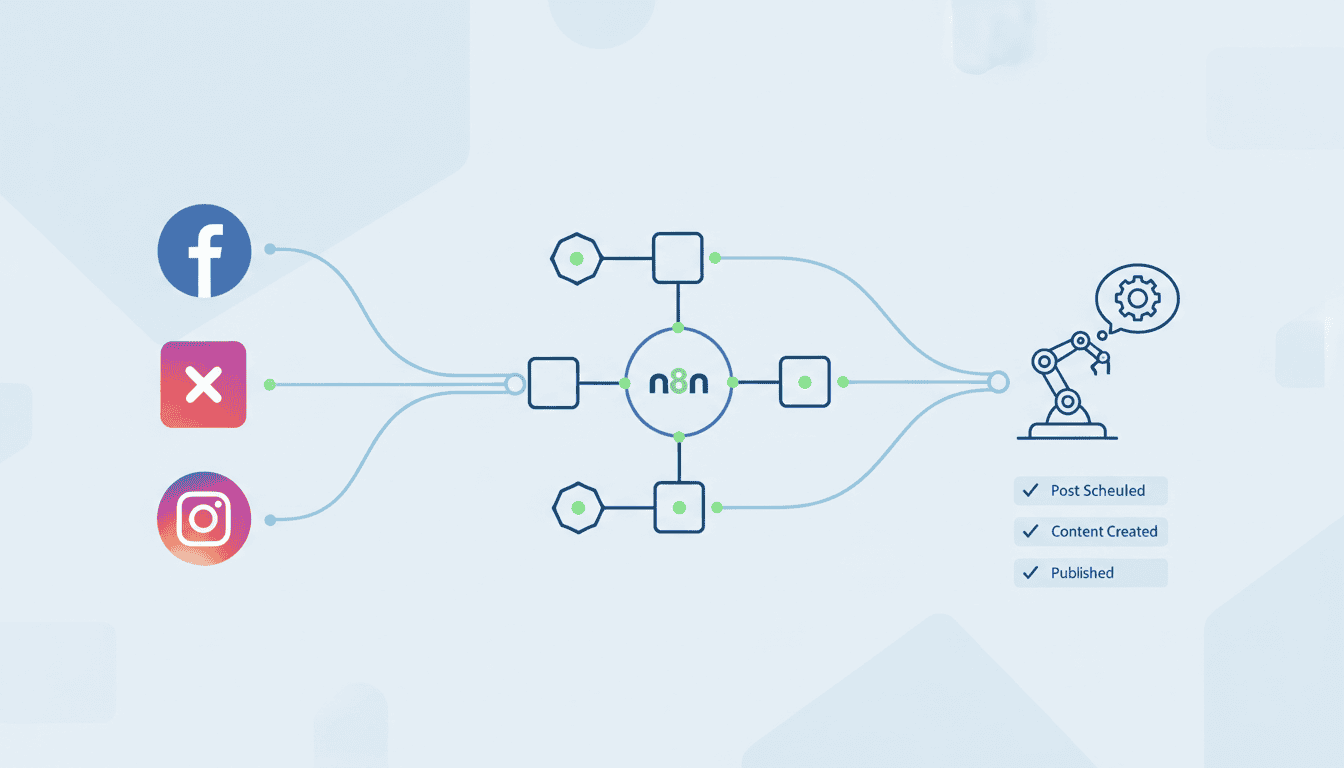
To create an effective multi-platform social posting strategy with n8n:
- Start with a central content repository (Google Sheets, Airtable, or a CMS)
- Design a workflow that branches out to different social platforms
- Add platform-specific nodes for each social network
- Include a Function node before each platform node to format content appropriately:
- Shorter content with hashtags for Twitter
- Professional tone for LinkedIn
- Visual focus for Instagram
- Conversational approach for Facebook
- Use Split In Batches nodes to handle multiple posts efficiently
- Implement error handling to address posting failures
This approach allows you to create content once but distribute it appropriately across multiple platforms, with content adjustments for each network’s unique requirements. Similar to AI agent workflows, these multi-platform posting systems can be designed with specific triggers and actions for each platform.
Optimizing Post Scheduling Across Platforms
Effective cross-platform scheduling requires strategic timing:
- Research optimal posting times for each platform using analytics
- Configure platform-specific schedules in your n8n workflow
- Use the Schedule node with multiple configurations:
- Morning posts for LinkedIn
- Afternoon/evening posts for Instagram
- Multiple daily posts for Twitter
- Implement post frequency limits to avoid overwhelming your audience
- Add delays between platform postings to spread out your content
- Track performance data to continually refine your scheduling strategy
Scheduling Posts with n8n
Effective scheduling is the backbone of any social media automation strategy. Let’s explore how to set up reliable scheduling with n8n.
Setting Up a Post Schedule
To create an efficient social media posting schedule in n8n:
- Start your workflow with the Schedule node
- Configure your posting cadence based on your content strategy:
- Daily, weekly, or monthly patterns
- Specific days and times
- Frequency adjustments for different platforms
- Connect your schedule to content sources:
- Set up a Google Sheets integration to pull content from your content calendar
- Use the Function node to prepare different content versions
- Add conditional logic for time-sensitive content
This method provides flexibility while maintaining consistency, similar to how n8n workflow examples for small businesses demonstrate reliable scheduling patterns for various business operations.
Using Cron Jobs for Consistent Posting
For more advanced scheduling needs, cron jobs provide precise control:
- Replace the standard Schedule node with the Cron node
- Use cron expressions to define complex posting patterns:
0 9 * * 1-5for weekday posts at 9 AM0 12,18 * * *for daily posts at noon and 6 PM0 10 * * 2,4for Tuesday and Thursday posts at 10 AM
- Combine multiple Cron nodes for different posting schedules
- Add randomization with Function nodes to vary posting times slightly
- Implement holiday and special event exceptions
| Posting Frequency | Cron Expression | Description |
| Weekday mornings | 0 9 * * 1-5 |
9 AM Monday through Friday |
| Weekend afternoons | 0 15 * * 0,6 |
3 PM on Saturday and Sunday |
| Three times daily | 0 9,13,17 * * * |
9 AM, 1 PM, and 5 PM every day |
Resources
These resources will help you maximize your n8n social media automation efforts:
Official n8n Documentation
The official documentation provides comprehensive guidance for using n8n:
- n8n Official Documentation – Complete reference for all nodes and features
- Integration Guides – Detailed instructions for connecting various platforms
- n8n Academy – Structured courses to master workflow automation
- n8n Blog – Regular updates and use cases
Understanding what is n8n and its capabilities is essential for building effective social media automation systems that scale with your needs.
Community and Forums for n8n Users
Connect with other n8n users to share ideas and solve challenges:
- n8n Community Forum – Ask questions and share workflow solutions
- GitHub Repository – Access code examples and contribute
- n8n Subreddit – Discussions and workflow sharing
- Discord Community – Real-time chat with other n8n users
- n8n Workflow Templates – Ready-to-use workflow examples
For small businesses looking to enhance their marketing efforts, AI agents for small business can complement your n8n social media automation by adding intelligent content generation capabilities to your workflow.
Conclusion
Automating social media posts with n8n transforms how you manage your online presence, saving time while maintaining a consistent publishing schedule. By following this beginner guide, you’ve learned how to set up n8n, connect your social media accounts, and create automated workflows for platforms like Instagram and LinkedIn. You’ve also discovered strategies for multi-platform posting and effective scheduling techniques.
As you grow comfortable with n8n, you can build increasingly sophisticated workflows that adapt to your audience engagement patterns and content performance. Remember to regularly review your automation systems and refine them based on results. Social media automation with n8n isn’t about removing the human element from your social presence—it’s about freeing up your time to focus on creating quality content and engaging meaningfully with your community.
Start with simple workflows, test thoroughly, and gradually expand your automation capabilities. With n8n’s flexible approach to workflow automation, you’ll be able to scale your social media management efficiently as your needs evolve.
FAQ
Is n8n suitable for small business social media automation?
Yes, n8n is highly suitable for small businesses looking to automate social media. It offers a cost-effective solution with a free self-hosted option and provides the flexibility to start with simple workflows that can grow more sophisticated as your business scales. Small businesses can particularly benefit from the time savings that come with automated posting schedules.
Can I post different content to different social platforms using n8n?
Absolutely. n8n allows you to customize content for each platform using Function nodes that format your content appropriately. You can pull content from a single source (like Google Sheets) and then transform it to match the best practices for each platform before posting.
Do I need coding skills to use n8n for social media automation?
Basic automation in n8n doesn’t require coding skills, as the visual workflow builder is intuitive. However, understanding some JavaScript can help you create more sophisticated workflows with the Function node. n8n provides templates and examples that can be adapted even by non-coders.
How secure is n8n for managing my social media accounts?
n8n takes security seriously and uses OAuth for connecting to social platforms, which is the industry standard. When self-hosting, you maintain complete control over your data. For n8n Cloud, the company employs strong security practices to protect your credentials and data.
Can n8n handle image and video posting for social media?
Yes, n8n can handle media posting, though capabilities vary by platform. You can include image URLs in your workflows, and n8n will process them accordingly. For platforms with more complex media requirements, you may need to use specific nodes or additional services in your workflow.
What happens if a scheduled post fails to publish?
n8n provides error handling capabilities that allow you to set up notifications (via email, Slack, etc.) when posts fail to publish. You can also configure retry logic or alternative actions to ensure your content strategy continues even if individual posts encounter issues.