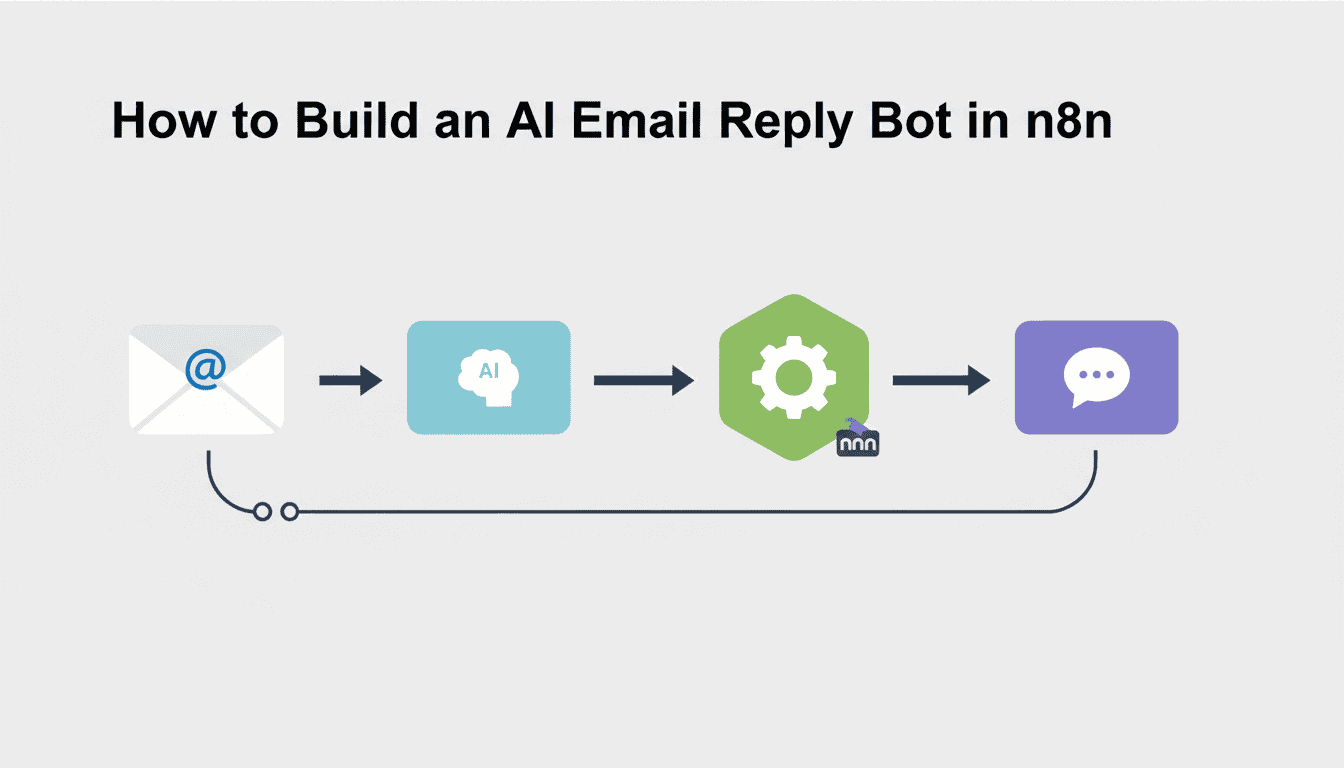
How to Build an AI Email Reply Bot in n8n
Email management can quickly become overwhelming, especially for businesses handling high volumes of customer inquiries. Creating an AI-powered email reply bot can save hours of manual work while ensuring timely responses to your contacts. In this guide, we’ll walk through the process of building an AI email reply bot using n8n, an open-source workflow automation platform, combined with OpenAI’s powerful language models.
This practical automation solution will help you streamline communication workflows by automatically analyzing incoming emails and generating appropriate responses. Let’s dive into how you can build this time-saving tool step by step.
Setting Up Your n8n Environment
Before we can create our AI email reply bot, we need to set up the n8n environment. This workflow automation platform provides the foundation for connecting our email service with OpenAI’s language capabilities.
Installing n8n
There are multiple ways to install n8n depending on your preferred environment:
- NPM Installation: If you have Node.js installed, you can use npm:
npm install n8n -g - Docker: For containerized deployment, use:
docker run -it --rm --name n8n -p 5678:5678 n8nio/n8n - Desktop Application: Download and install the desktop app from the official n8n website
- n8n Cloud: For a managed solution, you can sign up for n8n.cloud
After installation, access the n8n interface by navigating to http://localhost:5678 in your web browser (unless you’ve configured a different port).
Configuring Your n8n Instance
Once n8n is installed, you’ll need to configure a few settings to prepare for your email reply bot:
- Create an account on the n8n interface by setting up your username and password
- Navigate to Settings → API Keys to generate an API key for external services if needed
- Configure timezone settings to ensure your workflow runs at appropriate times
- Set up your environment variables for storing sensitive information like API keys
With your n8n environment ready, you can now move on to integrating OpenAI, which will power the intelligence behind your email reply bot.
Integrating OpenAI with n8n
The intelligence of your email reply bot comes from OpenAI’s language models. Here’s how to set up this crucial integration.
Creating an OpenAI Account and API Key
To leverage OpenAI’s capabilities, you need to create an account and obtain an API key:
- Visit OpenAI’s website and sign up for an account
- Navigate to the API section in your account dashboard
- Create a new API key and copy it to a secure location
- Review the pricing details to understand usage costs
Remember that OpenAI’s API is a paid service with different pricing tiers based on the model you use and your usage volume.
Connecting OpenAI to n8n
With your OpenAI API key in hand, let’s connect it to n8n:
- In your n8n workflow, add a new “OpenAI” node
- Click on “Create new credentials”
- Paste your OpenAI API key in the designated field
- Name your credentials for future reference
- Save the configuration
The OpenAI node in n8n gives you access to various capabilities, including text completion, chat models, and content moderation. For our email reply bot, we’ll primarily use the chat completion functionality with models like GPT-3.5 or GPT-4.
Creating the Email Workflow for Automated Replies
Now let’s build the core workflow that will power your AI email reply bot. This involves setting up triggers, processing emails with AI, and sending automated responses.
Setting Up Email Trigger Node
First, we need to configure n8n to monitor for incoming emails:
- In your workflow canvas, add an “Email Trigger (IMAP)” node
- Configure your email credentials (server, username, password)
- Set the polling interval (how often to check for new emails)
- Configure filters if you only want to process specific emails
- Test the connection to verify it’s working correctly
You can use Gmail, Outlook, or any email service that supports IMAP. For more advanced setups, consider using the “Email Trigger (Microsoft Graph API)” node for Microsoft 365 accounts or the “Gmail Trigger” node for Google Workspace users.
| Email Service | Recommended n8n Node |
| Gmail / Google Workspace | Gmail Trigger or Email Trigger (IMAP) |
| Microsoft 365 / Outlook | Email Trigger (Microsoft Graph API) |
| Other email providers | Email Trigger (IMAP) |
Configuring OpenAI Node for Email Responses
Now we need to set up the AI processing of our emails:
- Add a “Function” node after your email trigger to extract and format the email content
- Add an “OpenAI” node and select the “Chat Completion” operation
- Configure the model (GPT-3.5-turbo or GPT-4 recommended)
- Create a system prompt that instructs the AI on how to respond to emails
- Pass the email content as the user message
Your system prompt is critical for getting good results. Here’s an example of an effective prompt:
You are an email assistant for [Company Name]. When responding to emails:
1. Keep responses professional, helpful, and concise
2. Address the specific questions in the email
3. Use a friendly but professional tone
4. Sign off as "[Your Name] - AI Assistant"
5. If you cannot answer a specific question, note that a human team member will follow up
Using AI agent workflows can significantly enhance how your email bot processes and responds to different types of inquiries. The n8n platform makes it simple to implement these advanced workflows.
Sending Automated Email Replies
Finally, we need to send the AI-generated response back to the original sender:
- Add a “Send Email” node after the OpenAI node
- Configure it with your sending email credentials
- Set the recipient to the original sender’s email address
- Use a subject line that references the original email (e.g., “Re: {{$node[“Email Trigger”].json[“subject”]}}”)
- Set the body to the AI-generated response from the OpenAI node
You may also want to add conditionals to filter which emails get automated responses versus which ones should be escalated to human review.
Testing Your AI Email Reply Bot
Before deploying your email reply bot in a production environment, thorough testing is essential.
Simulating Incoming Emails
To test your workflow without waiting for actual emails:
- Use n8n’s “Execute Workflow” feature with test data
- Send test emails to your configured email address
- Monitor the execution in n8n’s execution log
- Check if the email trigger is correctly detecting new messages
You can also use a dedicated test email account to avoid cluttering your production inbox during testing.
Reviewing and Adjusting the Bot Responses
Analyze the quality and appropriateness of your AI-generated responses:
- Check for tone and content consistency
- Verify that responses address the original email queries
- Test with various email types (inquiries, complaints, information requests)
- Refine your system prompt based on response quality
If you’re looking for inspiration, check out these n8n workflow examples that can be adapted for various business needs beyond email automation.
Resources
Additional Guides on n8n Integrations
To further enhance your n8n knowledge and capabilities:
- What is n8n – A comprehensive overview of the platform
- n8n Integration Documentation – Official documentation for all available integrations
- n8n Community Forum – Connect with other n8n users for tips and solutions
For small business owners looking to implement more AI-powered solutions, consider exploring how to build an AI agent for small business to handle various operational tasks.
OpenAI Documentation for API Users
To make the most of OpenAI’s capabilities:
- OpenAI API Reference – Detailed documentation for all API endpoints
- GPT Best Practices – Guidelines for crafting effective prompts
- Prompt Engineering Best Practices – Tips for getting better results from AI models
Conclusion
Building an AI email reply bot in n8n provides a powerful solution for automating customer communications while maintaining quality responses. By connecting n8n with OpenAI and your email service, you’ve created a workflow that can save countless hours of manual email handling.
Remember that while AI can handle many routine inquiries, it’s important to regularly review responses and maintain human oversight for complex or sensitive communications. As you become more comfortable with n8n and OpenAI integration, you can further refine your system prompts, add more sophisticated logic, and expand the capabilities of your email bot.
With this automation in place, your team can focus on higher-value tasks while ensuring that no customer inquiry goes unanswered. The combination of workflow automation through n8n and AI through OpenAI represents just one example of how businesses can leverage technology to improve efficiency and customer service.
Frequently Asked Questions
How much does it cost to run an AI email reply bot in n8n?
The cost depends on several factors: n8n can be self-hosted for free (open-source) or you can use n8n.cloud (paid subscription starting around $20/month). OpenAI API costs vary based on your usage and model choice, typically ranging from $0.002 to $0.06 per 1,000 tokens. For a business handling 100 emails daily, expect costs of approximately $10-50 per month for OpenAI usage.
Can the AI email bot handle attachments?
Yes, n8n can process emails with attachments. While the AI itself doesn’t analyze the contents of attachments, you can configure your workflow to acknowledge attachments in responses or forward emails with attachments to human team members for review.
How can I ensure the AI doesn’t respond to spam emails?
Implement filtering in your email trigger node based on sender domains, specific keywords, or spam scores. You can also add a “Filter” node to analyze email content before passing it to OpenAI, preventing automated responses to detected spam patterns.
Is my email data secure when using OpenAI’s API?
OpenAI has data usage policies in place, but for maximum security, ensure you’re not sending sensitive personal information to the API. Consider implementing a preprocessing step to redact sensitive information before sending content to OpenAI. Also review OpenAI’s latest data privacy policies for API users.
Can I train the AI to use my company’s specific knowledge base?
While you can’t directly fine-tune models through n8n, you can incorporate company-specific information in your system prompts. For more advanced solutions, consider using embedding techniques with a Vector Database node in n8n or implementing retrieval-augmented generation (RAG) patterns in your workflow.