
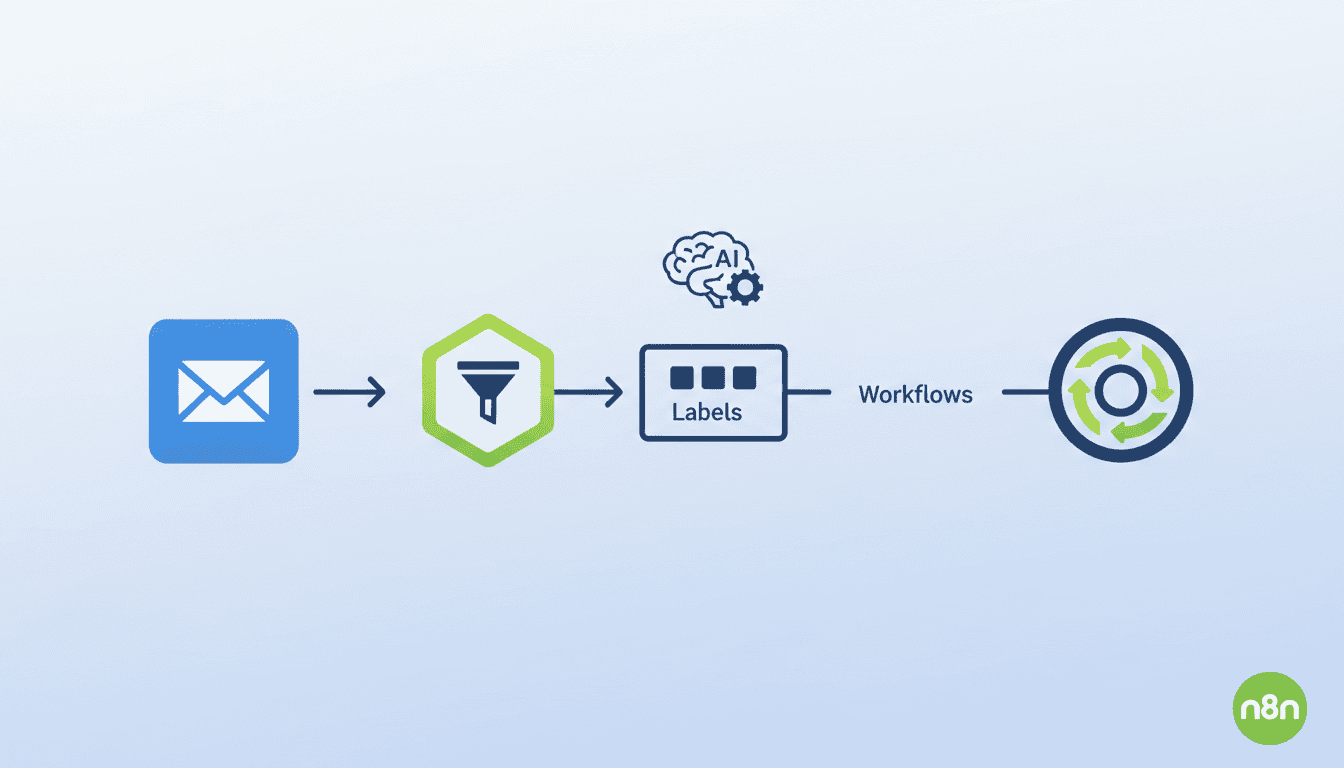
How to Automate Gmail with Zapier (Filters, Labels, and Workflows)
Email management can be overwhelming, especially when you’re juggling multiple projects or clients. Learning how to automate Gmail with Zapier can save you hours each week by eliminating repetitive tasks and organizing your inbox automatically. With Zapier’s powerful automation capabilities, you can create filters, apply labels, and build workflows that handle your emails exactly how you want them—without manual intervention.
In this guide, we’ll walk through everything you need to know about connecting Gmail to Zapier and creating efficient automation systems that work while you focus on more important tasks.
Setting Up Your Zapier Account
Before you can start automating your Gmail, you’ll need to set up a Zapier account and understand how the platform works with Gmail.
Creating a New Zap
A “Zap” is Zapier’s term for an automated workflow that connects your apps and services together. To create your first Gmail automation:
- Sign up or log in to your Zapier account at zapier.com
- Click the “Create Zap” button in the top navigation
- Select Gmail as your trigger app (the app that starts your automation)
- Choose a trigger event (e.g., “New Email,” “New Labeled Email,” etc.)
The Gmail zapier integration allows you to trigger actions based on specific email events, such as receiving an email from a particular sender or with certain keywords in the subject line.
Connecting Gmail to Zapier
To establish the Zapier Gmail connection:
- When prompted during Zap creation, click “Connect Gmail”
- Log in to your Gmail account when redirected
- Grant Zapier the necessary permissions to access your Gmail account
- Name your connection for easy reference if you have multiple Gmail accounts
Once connected, you can create various automations that interact with your Gmail account. Zapier maintains this connection securely, and you can revoke access at any time through your Google account settings.
Using Filters in Your Gmail Automation
Filters are one of the most powerful ways to automate Gmail with Zapier, allowing you to process emails based on specific criteria.
What Are Filters?
In the context of Gmail automation, filters are rules that determine which emails trigger your automation workflows. These filters can be based on:
- Sender email address
- Subject line keywords
- Email content
- Attachments
- Date received
By setting up precise filters, you ensure your automations only trigger when necessary, preventing unwanted actions and saving Zapier task credits.
Creating Filters in Zapier
To create effective filters in your zapier and gmail integration:
- After selecting your Gmail trigger, click “Continue”
- In the “Trigger” setup, you’ll see filter options
- Add conditions like “From email contains,” “Subject contains,” etc.
- Combine multiple filters for more precise targeting
- Test your filter with sample emails to ensure it works correctly
| Filter Type | Example Use Case |
| From Email | Automate responses to client emails |
| Subject Contains | Forward invoices to accounting |
| Has Attachment | Save attachments to Google Drive |
Adding Labels to Organized Gmail Workflows
Labels are Gmail’s equivalent of folders, and they’re essential for keeping your inbox organized. The gmail zapier integration allows you to automatically apply labels to incoming emails.
Understanding Gmail Labels
Gmail labels help categorize emails without moving them from your inbox. Unlike traditional folders, an email can have multiple labels, making them more flexible for organization. Before automating label assignments, ensure you’ve created the necessary labels in Gmail:
- Go to Gmail settings (gear icon)
- Click on the “Labels” tab
- Create new labels or use existing ones
- Consider creating a hierarchy of labels for better organization
Well-structured labels make your automation more effective and your inbox easier to navigate.
Automating Label Assignments with Zapier
To automate Gmail with Zapier for label management:
- Create a Zap with Gmail as the trigger
- Choose “New Email” or another appropriate trigger
- Set up your filters as described earlier
- For the action step, choose Gmail again
- Select “Add Label to Email” as the action
- Choose the label you want to apply automatically
You can also use n8n as an alternative automation platform for more complex Gmail workflows. What is n8n explains how this open-source tool can handle sophisticated email processing scenarios.
Creating Workflows to Enhance Productivity
While simple automations are useful, the real power of the zapier gmail connection comes from building multi-step workflows.
What Is a Zap Workflow?
A Zap workflow consists of:
- Trigger: The event that starts the automation (e.g., receiving an email)
- Actions: One or more tasks that Zapier performs automatically
- Logic: Optional conditions that determine when actions should run
Workflows can connect Gmail with hundreds of other apps and services, creating powerful automations that span your entire digital workflow.
Examples of Gmail Workflows with Zapier
Here are some practical zapier and gmail workflow examples:
- Email-to-Task Conversion: Create tasks in Asana or Trello when emails contain specific project keywords
- Client Communication Tracker: Log client emails to a spreadsheet for tracking communication history
- Automatic Meeting Scheduler: When emails contain meeting requests, create calendar events automatically
- Email Response Templates: Send customized responses based on email content
- Document Management: Save attachments to Google Drive and notify your team
For businesses looking to implement AI-powered email workflows, exploring AI agent workflows can take your Gmail automation to the next level.
Testing and Troubleshooting Your Zaps
Before fully implementing your gmail zapier integration, thorough testing is essential to ensure it works correctly.
Running Test Zaps
Zapier provides a testing environment for each step of your Zap:
- After setting up a trigger or action, click the “Test” button
- For triggers, Zapier will find recent matching emails
- For actions, Zapier will perform a test run without affecting your real data
- Review the test results to ensure data is being processed correctly
Thorough testing saves time by identifying issues before they affect your actual workflow.
Common Issues and Solutions
When you automate Gmail with Zapier, you might encounter these common challenges:
| Issue | Solution |
| Zap not triggering | Check your filter criteria; they might be too specific |
| Duplicate actions | Ensure your trigger conditions don’t process the same email multiple times |
| Permission errors | Reconnect your Gmail account in Zapier |
| Missing data | Verify that your Gmail settings allow full access to email content |
Small business owners might find AI agents for small business helpful for troubleshooting and optimizing their email automations.
Resources
Here are some helpful resources for mastering Gmail automation with Zapier:
- Zapier’s Official Gmail Automation Guide
- Google’s Documentation on Gmail Labels
- n8n workflow examples as an alternative automation approach
Conclusion
Learning how to automate Gmail with Zapier can transform your email management from a time-consuming chore to an efficient, organized system. By leveraging filters, labels, and multi-step workflows, you can ensure important messages get the attention they deserve while routine emails are processed automatically.
Start with simple automations and gradually build more complex workflows as you become comfortable with the platform. The time you invest in setting up these automations will pay dividends in increased productivity and reduced email stress.
Whether you’re a busy professional, small business owner, or team manager, Gmail and Zapier together provide powerful tools to take control of your inbox and free up more time for meaningful work.
Frequently Asked Questions
Does Zapier work with all Gmail accounts?
Zapier works with personal Gmail accounts as well as Google Workspace (formerly G Suite) accounts. However, if your organization has restricted third-party access, you may need administrator approval.
How many Gmail automations can I create with Zapier?
The number of automations (Zaps) you can create depends on your Zapier plan. Free plans allow up to 5 single-step Zaps, while paid plans allow for more Zaps and multi-step workflows.
Can I automate Gmail to forward specific emails to others?
Yes, you can create a Zap that triggers on specific incoming emails and automatically forwards them to designated recipients, maintaining the original content or adding custom notes.
Will Zapier automations work with my existing Gmail filters?
Yes, Zapier works alongside your existing Gmail filters. However, be mindful of potential conflicts if both systems are trying to process the same emails in different ways.
Is it possible to use Zapier to schedule emails in Gmail?
While Gmail has its own schedule-send feature, you can use Zapier to trigger scheduled emails based on other events, like form submissions or calendar appointments.