How to Automate Invoice Workflows Using n8n
Invoice processing is often time-consuming and error-prone when done manually. Automating your invoice workflows using n8n can significantly improve efficiency, reduce errors, and free up valuable time for your finance team. n8n is a powerful workflow automation platform that allows you to connect various services and automate repetitive tasks without extensive coding knowledge. In this guide, we’ll explore how to implement n8n invoice automation to streamline your billing processes and enhance your financial operations.
Setting Up Your n8n Environment for Invoice Automation
Before you can begin automating your invoice workflows, you’ll need to properly set up your n8n environment. This involves creating an account, installing the platform, and connecting to your data sources.
Creating an n8n Account
The first step in your n8n invoice automation journey is creating an account:
- Visit the n8n website (n8n.io)
- Sign up for a free account by providing your email and creating a password
- Verify your email address through the confirmation link
- Log in to access the n8n dashboard
Once logged in, you’ll see the n8n interface where you’ll build your automated invoice workflows.
Installing n8n Locally or in the Cloud
You have two primary options for running n8n:
- Cloud Installation: n8n.cloud provides a managed service where you can run workflows without worrying about infrastructure
- Local Installation: You can install n8n on your own computer or server for greater control
For local installation, you’ll need to use npm (Node Package Manager):
Connecting n8n to Your Data Sources
To automate invoice workflows, you’ll need to connect n8n to various data sources:
- Navigate to the Credentials section in your n8n dashboard
- Add connections to relevant services such as your CRM, accounting software, email service, or database
- Provide the necessary API keys, access tokens, or login credentials for each service
- Test the connections to ensure data flows correctly
Common data sources for invoice automation include QuickBooks, Xero, FreshBooks, Google Sheets, databases, and email providers.
Designing Your Invoice Workflow in n8n
With your environment set up, you can now design your invoice workflow in n8n. This involves mapping out the process steps, setting triggers, and integrating with third-party services.
Defining the Workflow Steps for Invoice Automation
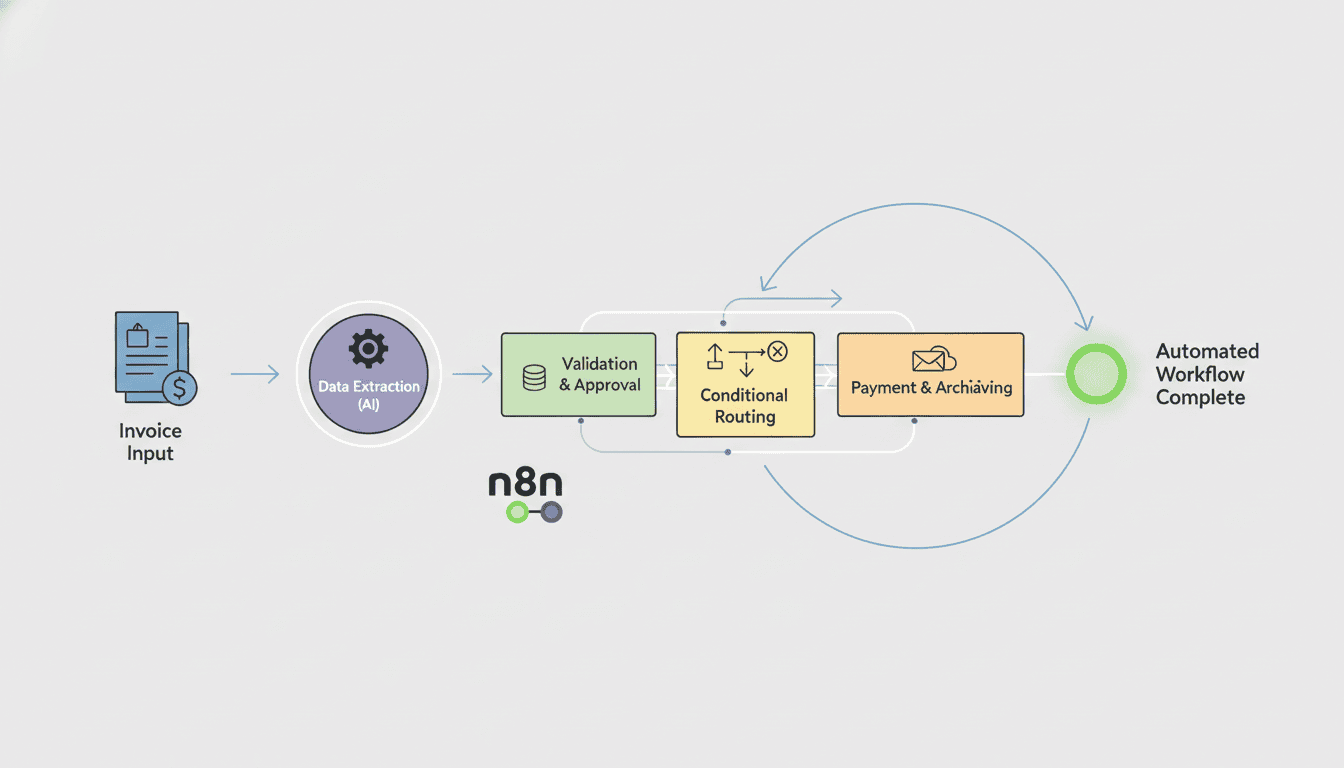
A typical invoice workflow in n8n might include these steps:
- Receiving invoice data (via email, form submission, or file upload)
- Processing and extracting relevant information
- Validating invoice details against purchase orders
- Routing invoices for approval
- Recording approved invoices in your accounting system
- Scheduling payments
- Sending confirmation notifications
To create this workflow in n8n, you’ll use the visual workflow editor to drag and drop nodes and connect them in a logical sequence.
Adding Trigger Nodes for Automated Invoicing
Trigger nodes initiate your workflow when certain conditions are met. For invoice workflow n8n setups, common triggers include:
- Email Trigger: Activates when an invoice arrives via email
- Webhook Trigger: Starts the workflow when data is received from a web form or API
- Scheduler: Runs the workflow at specific times (useful for recurring invoices)
- File Trigger: Activates when new files are uploaded to a monitored folder
Configure your trigger by specifying conditions like sender email address, subject line filters, or file types to ensure only relevant invoices enter your workflow.
Integrating Third-Party Services for Invoice Management
n8n offers numerous integration nodes for popular invoice management tools:
| Service Type | Examples | Common Uses |
| Accounting Software | QuickBooks, Xero, FreshBooks | Recording invoices, creating payments |
| Document Management | Google Drive, Dropbox, OneDrive | Storing invoice copies and documentation |
| Communication | Slack, Email, SMS | Sending notifications and reminders |
| CRM | HubSpot, Salesforce, Zoho | Linking invoices to customer records |
Connect these services using their respective nodes in n8n, configuring the authentication and data mapping for each integration.
Implementing OCR for Invoice Processing with n8n
Optical Character Recognition (OCR) technology is crucial for automating invoice data extraction, especially when dealing with PDF or image-based invoices.
Setting Up OCR Nodes in n8n
To implement OCR invoices n8n workflow:
- Add an OCR service node to your workflow (like Google Cloud Vision, Amazon Textract, or Tesseract)
- Configure the OCR node with your service credentials
- Connect the node that receives your invoice (email, file upload) to the OCR node
- Set up parameters for image preprocessing if needed (contrast, rotation, etc.)
Extracting Data from Invoices Automatically
After OCR processing, you’ll need to extract specific data points:
- Add a “Function” node after your OCR node
- Write scripts to parse the OCR text output for key information:
- Invoice number
- Vendor details
- Invoice date and due date
- Line items and descriptions
- Tax amounts
- Total amount due
- Use regular expressions or pattern matching to locate and extract this information
- Structure the extracted data for downstream processing
Handling OCR Errors and Data Validation
OCR isn’t perfect, so implement validation steps:
- Add data validation nodes to check extracted values against expected formats
- Implement conditional paths for handling recognition errors
- Create human review steps for invoices that fail validation
- Set up error notification workflows to alert team members of issues
You might use AI agent workflows to improve validation accuracy by training models to recognize patterns in your specific invoice formats.
Automating Billing Tasks with n8n
Beyond basic invoice processing, n8n can automate numerous billing-related tasks.
Creating Automated Notifications and Reminders
Set up notification systems to keep your team and vendors informed:
- Configure email or SMS nodes to send automated notifications when:
- New invoices are received
- Invoices require approval
- Payments are due soon
- Payments are overdue
- Use templating to personalize messages with invoice details
- Implement escalation paths for urgent or overdue items
Scheduling Invoice Payments Automatically
To automate billing tasks related to payment:
- Connect n8n to your payment processor or banking system
- Set up scheduler nodes to initiate payments on specific dates
- Configure approval workflows for payments above certain thresholds
- Create confirmation nodes to document successful payments
This automation ensures timely payments, helps avoid late fees, and maintains good vendor relationships.
Generating Reports on Invoice Activity
Create automated reporting to monitor your invoice processes:
- Use aggregation nodes to compile invoice data over time
- Build reporting workflows that run daily, weekly, or monthly
- Configure output formats (spreadsheets, PDFs, dashboards)
- Set up distribution lists for automated report delivery
Common reports include aging reports, vendor spending analyses, and cash flow forecasts based on upcoming invoice payments.
Integrating Finance Automation into Your Workflow
For comprehensive finance automation n8n can connect your invoice processes with broader financial systems.
Linking With Accounting Software
Create seamless connections to your accounting platform:
- Configure bi-directional data flow between n8n and systems like QuickBooks, Sage, or Xero
- Automate journal entries when invoices are processed
- Sync vendor records and payment terms
- Update GL accounts automatically based on invoice categorization
This integration eliminates double-entry and ensures financial records stay current.
Creating a Seamless Accounts Payable System
Implement accounts payable automation through these workflow components:
- Invoice receipt and categorization
- Matching invoices to purchase orders
- Multi-level approval workflows based on amount thresholds
- Payment scheduling and execution
- Vendor communication management
- Exception handling for discrepancies
Optimizing Financial Reporting through Automation
Enhance your financial insights with automated reporting:
- Create dashboards that update in real-time as invoices flow through your system
- Set up automated variance analysis to flag unusual spending
- Generate cash flow forecasts based on pending invoices
- Build budget tracking workflows that compare actual spending to planned amounts
Using what is n8n capabilities, you can transform raw financial data into actionable business intelligence.
Resources
Useful Links for n8n Users
- n8n Official Documentation – Comprehensive guides and reference materials
- n8n workflow examples – Ready-to-use workflow templates for small businesses
- n8n GitHub Repository – Source code and community contributions
- OCR Technology Resources – Information on OCR implementation for document processing
Community and Support for Invoice Automation
Connect with others using n8n for invoice processes:
- n8n Community Forum – Share workflows and ask questions
- n8n Slack Community – Real-time discussions with other users
- LinkedIn Groups for Finance Automation – Professional networking around automation
- AI agent for small business – Resources for enhancing your workflows with AI
Conclusion
Automating invoice workflows with n8n offers significant advantages for businesses of all sizes. By implementing the steps outlined in this guide, you can transform your invoice processing from a manual, error-prone task into a streamlined, efficient system. The power of n8n invoice automation lies in its flexibility and ability to connect with virtually any service or tool your finance team uses.
Start small by automating one part of your invoice process, then gradually expand as you become more comfortable with the platform. Remember that the initial setup time will pay dividends through increased accuracy, reduced processing times, and better financial visibility. With n8n, you’re not just processing invoices faster—you’re building a foundation for comprehensive finance automation that can scale with your business.
Frequently Asked Questions
What types of invoices can be automated with n8n?
n8n can process virtually any invoice format, including PDFs, images, emails, digital formats, and structured data. Using OCR technology, even scanned paper invoices can be incorporated into your automated workflow.
Do I need coding experience to set up n8n invoice automation?
Basic workflows can be created without coding using n8n’s visual interface. For more complex operations like custom data extraction or validation, some JavaScript knowledge is helpful but not mandatory.
How secure is invoice data in n8n workflows?
n8n offers robust security features, especially when self-hosted. You control where your data resides, and encryption can be implemented at various points in the workflow. Always follow financial data security best practices when designing your automation.
Can n8n handle multiple currencies in invoice processing?
Yes, n8n can process invoices in multiple currencies. You can set up currency conversion nodes and implement rules for handling different currencies according to your accounting policies.
How much time can invoice automation with n8n save?
Businesses typically report 70-90% time savings after fully implementing invoice automation. A process that might take 15-20 minutes manually can often be reduced to seconds, with the added benefit of 24/7 operation.
What’s the best way to start implementing n8n for invoice automation?
Begin with a simple workflow that handles one type of invoice from a specific source. After testing and refining this process, gradually expand to include more invoice types and additional automation steps.