
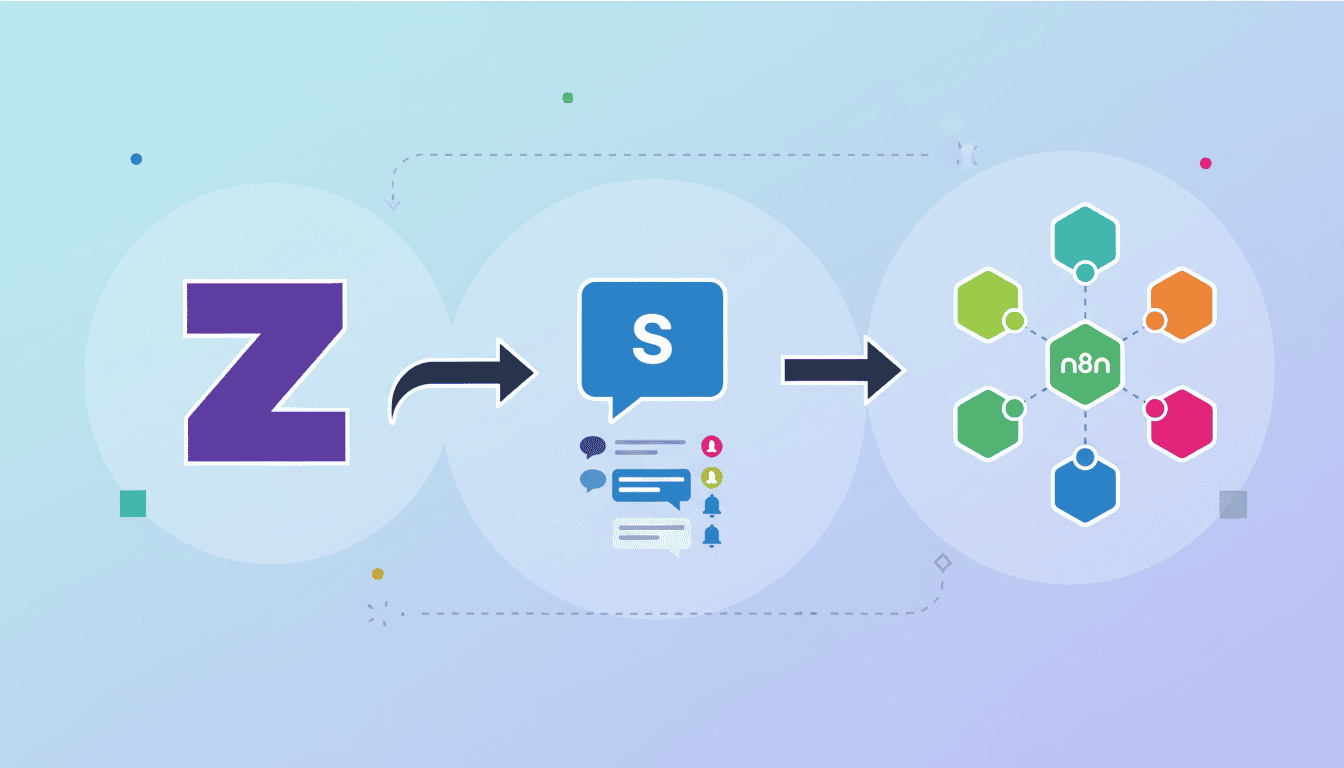
How to Automate Slack Notifications and Messages with Zapier
In today’s fast-paced business environment, effective communication is crucial. Slack has emerged as one of the leading platforms for team collaboration, while Zapier offers powerful automation capabilities. Combining Zapier and Slack can transform your workflow by automating notifications, messages, and alerts, saving your team valuable time and ensuring important information is always shared promptly. This guide will walk you through setting up and optimizing your Zapier Slack integration to streamline your communication processes.
Setting Up Your Zapier and Slack Integration
Before you can begin automating your Slack notifications, you’ll need to establish a connection between Zapier and Slack. This foundation will allow information to flow seamlessly between Slack and your other apps through Zapier.
Creating a New Zap
A “Zap” is Zapier’s term for an automated workflow that connects your apps and services. Here’s how to create one for Slack:
- Log in to your Zapier account or create a new one if you don’t have one yet
- Click on “Create Zap” in the top-left corner of your dashboard
- You’ll be prompted to choose a trigger app (the application that starts your automation)
- Depending on your workflow needs, you might select Slack as your trigger app, or another app that will initiate the process
- After selecting your trigger app, you’ll need to choose a specific trigger event
Connecting Your Slack Account
To establish the connection between Zapier and Slack, you’ll need to authenticate your Slack workspace:
- When you select Slack as either your trigger or action app, Zapier will prompt you to connect your Slack account
- Click on “Connect an Account”
- You’ll be redirected to Slack to authorize Zapier’s access
- Select the workspace you want to connect
- Review the permissions Zapier is requesting and click “Allow”
- You’ll be redirected back to Zapier, and your Slack account will now be connected
Once connected, you can use this account connection for all future Zaps involving Slack without having to reconnect each time.
Choosing Trigger Events in Slack
Trigger events are the specific actions or events that start your Zap. When using Zapier Slack integrations, you can choose from various trigger events within Slack or use events from other apps to send information to Slack.
Popular Trigger Events for Slack
Slack offers several trigger events in Zapier that you can use to initiate automations:
| Trigger Event | Description | Common Use Cases |
| New Message Posted to Channel | Triggered when someone posts a message to a specific channel | Relay messages to other platforms, log important discussions |
| New Message Posted with Star | Activated when a message receives a star | Track important messages, create task lists from starred items |
| New Channel Created | Triggered when a new channel is created in your workspace | Keep track of workspace organization, update directories |
| New Member Joined Channel | Activated when someone joins a specific channel | Welcome new members, update team rosters |
You can also use triggers from other apps to send information to Slack, such as new leads from your CRM, form submissions, or calendar events.
Customizing Trigger Conditions
For more precise control over your automations, Zapier allows you to customize trigger conditions:
- Channel specificity – Limit your trigger to monitor only specific channels
- User filters – Trigger only for specific users or exclude certain users
- Keyword monitoring – Trigger when messages contain specific words or phrases
- Time-based conditions – Using Zapier’s Schedule feature, you can add time-based conditions to your Slack triggers
Customizing these conditions helps reduce noise and ensures your automations run only when truly needed, making your Zapier Slack integration more efficient.
Configuring Action Steps in Zapier
After setting up your trigger, you’ll need to configure the action steps that determine what happens when the trigger is activated. For Slack automations, this is where you specify exactly how and where notifications or messages will appear.
Setting Up Notifications in Slack
To automate Slack notifications with Zapier, follow these configuration steps:
- Select “Slack” as your action app
- Choose the action event (e.g., “Send Channel Message,” “Send Direct Message,” “Create a Channel”)
- Select the Slack workspace and channel where the notification should appear
- Craft your message using plain text and/or Slack’s formatting options
- Incorporate dynamic data from your trigger by clicking the “+” button to insert data fields
- Configure additional options like attachments, buttons, or emoji reactions
Another option for automating complex communication workflows is to use n8n workflow examples which offer additional flexibility for multi-step processes with conditional logic.
Sending Direct Messages vs. Channel Messages
When automating Slack communications, you need to decide whether to send notifications to channels or directly to individuals:
| Channel Messages | Direct Messages |
| Visible to all channel members | Private, only visible to the recipient |
| Good for team announcements, updates | Ideal for personal notifications, reminders |
| Can create noise in busy channels | Ensures important messages are seen |
| Supports thread conversations | Better for sensitive information |
You can also set up more sophisticated message routing using Zapier’s paths or multi-step Zaps, sending different notifications to different destinations based on specific conditions.
Testing and Activating Your Zap
Before fully implementing your automation, it’s crucial to test it thoroughly to ensure it works as expected and doesn’t flood your Slack workspace with unwanted messages.
Running Your First Test
Zapier provides a testing feature to verify your Zap works correctly:
- After configuring both your trigger and action steps, click on “Test & Continue”
- Zapier will attempt to pull a recent trigger event from your connected app
- If there’s no recent event, you might need to create one manually (e.g., post a message in Slack)
- Review the sample data to ensure it contains all the information your Zap needs
- Click “Test Action” to send a test message to Slack
- Check your Slack workspace to verify the message arrived as expected
If you encounter issues during testing, review your configuration settings and make adjustments as needed.
Activating Your Zap
Once you’ve confirmed your Zapier Slack integration works correctly during testing, it’s time to activate it:
- Review all your trigger and action settings one final time
- Click the “Publish” or “Turn on Zap” toggle
- Your Zap is now live and will run automatically based on your trigger conditions
- Monitor your Zap’s performance in the Zapier dashboard
- Check your task usage to ensure you stay within your Zapier plan limits
For teams looking to implement more advanced workflows with AI capabilities, AI agent workflows can be integrated with your Slack automations to create intelligent communication systems.
Resources
- Official Zapier-Slack Integration Documentation
- Slack’s Guide to Zapier Integration
- What is n8n? – An alternative open-source workflow automation tool that works well with Slack
- Zapier’s Blog: 20 Ways to Automate Slack
Conclusion
Automating your Slack notifications and messages with Zapier can dramatically improve your team’s communication efficiency. By setting up thoughtful triggers and carefully crafted action steps, you can ensure that the right information reaches the right people at the right time, all without manual intervention.
Start with simple automations like project updates or new lead notifications, then gradually expand to more complex workflows as you become comfortable with the Zapier Slack integration. Remember that effective automation is about quality, not quantity—focus on creating meaningful notifications that add value rather than contribute to information overload.
For small businesses looking to further enhance their automation capabilities, AI agents for small business can be combined with your Slack and Zapier workflows to create intelligent systems that not only communicate information but also help process and act on it.
Frequently Asked Questions
Can I use Zapier to automate Slack without coding knowledge?
Absolutely! Zapier is designed to be user-friendly with a no-code approach. The visual interface guides you through each step of creating automations between Slack and other apps without requiring any programming skills.
How many Slack automations can I create with Zapier?
The number of automations (Zaps) you can create depends on your Zapier plan. Free plans typically allow for a limited number of Zaps and tasks per month, while paid plans offer more capacity. Check Zapier’s current pricing for specific limits.
Can I automate Slack messages on a schedule?
Yes, by using Zapier’s Schedule trigger, you can send automated Slack messages at specific times, on certain days, or at regular intervals without needing another app as a trigger.
Is it possible to format automated Slack messages?
Yes, Zapier supports Slack’s text formatting options. You can include bold text, italics, bullet points, and even interactive elements like buttons or dropdown menus in your automated messages.
What happens if my Zapier-Slack automation encounters an error?
If your Zap encounters an error, Zapier will typically retry the action a few times. You can also set up error notifications to alert you when a Zap fails, allowing you to address issues promptly.
Can I use Zapier to post messages as my Slack bot rather than as myself?
Yes, when configuring your Slack action in Zapier, you can choose to post messages as a bot with a custom name and icon rather than having them appear under your user account.