How to Automate Email Workflows in n8n (Step-by-Step)
Email automation is a game-changer for businesses and individuals looking to streamline their communication processes. With n8n email automation, you can create powerful workflows that save time, reduce manual tasks, and ensure consistent communication with clients and team members. This comprehensive guide will walk you through the process of setting up and optimizing email workflows in n8n, from basic setup to advanced automation techniques.
Whether you’re looking to send personalized marketing emails, automate customer support responses, or create internal notification systems, n8n provides a flexible platform to build these workflows without coding knowledge. Let’s dive into n8n email automation and how to make your email processes using n8n.
Setting Up n8n for Email Automation
Before you can begin creating automated email workflows, you’ll need to set up n8n and connect it to your preferred email service. This foundational step ensures that n8n has the necessary permissions to send and receive emails on your behalf.
Creating an n8n Account
The first step in your n8n email automation journey is creating an account and setting up the platform:
- Visit the official n8n website (n8n.io) and sign up for an account
- Choose between cloud-hosted or self-hosted options based on your needs
- For self-hosted installations, follow the documentation to install n8n using npm, Docker, or desktop applications
- Once installed, access the n8n interface through your browser
- Navigate to the workflow editor where you’ll build your automation
Connecting to Your Email Service
To begin with n8n gmail automation or connect to other email services, you’ll need to set up the appropriate credentials:
- In the n8n interface, click on the “Credentials” option in the main menu
- Select “Create New” and choose your email service provider (Gmail, SMTP, etc.)
- For Gmail, you’ll need to authorize n8n using OAuth by following the prompts
- For SMTP services, enter your server details, port numbers, username, and password
- Test the connection to ensure n8n can successfully communicate with your email service
Once connected, n8n will maintain secure access to your email account for use in workflows. Most email providers require specific security settings, so you may need to create app-specific passwords or enable less secure app access depending on your provider.
Creating Email Workflows in n8n
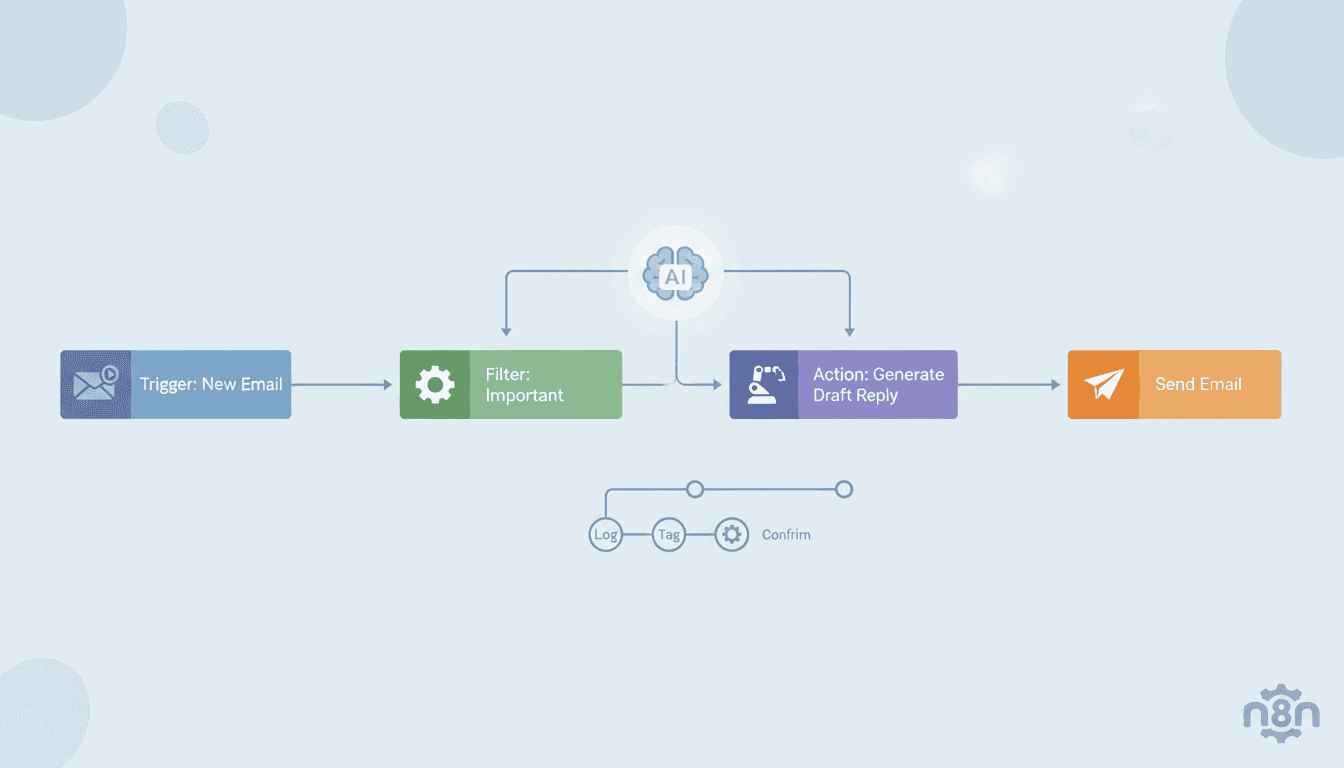
With your email service connected, you can now begin building n8n email workflows. These workflows define the logic of when and how emails are sent, processed, or responded to automatically.
Designing Your First Email Workflow
Let’s create a basic workflow that sends an automated welcome email when triggered:
- In the n8n Workflow Editor, add a “Manual” trigger node as your starting point
- Click the “+” button to add a new node and select your email service (e.g., Gmail, SMTP)
- Configure the email node with recipient details, subject line, and email body
- Connect the nodes by dragging from the output of the trigger to the input of the email node
- Save your workflow and test it by clicking “Execute Workflow”
This simple workflow demonstrates the basic structure of email automation in n8n. You can expand upon this foundation by adding more nodes for complex processing.
Utilizing Email Triggers in n8n
Email triggers in n8n allow your workflows to respond to incoming emails, creating responsive automation systems:
- Add an “Email Trigger (IMAP)” node at the start of your workflow
- Configure the node with your email credentials
- Specify filters such as sender address, subject keywords, or attachment criteria
- Set the checking interval to determine how frequently n8n checks for new emails
- Connect the output to subsequent nodes that process the email content
With email triggers properly configured, you can build workflows that automatically categorize incoming emails, send predetermined responses, extract information from emails, or trigger other business processes based on email content.
Customizing Email Templates in n8n
Creating reusable email templates improves consistency and efficiency in your communication. n8n email templates can be personalized with dynamic content for each recipient.
Setting Up Email Template Variables
To create dynamic email templates in n8n:
- Create a “Set” node to define variables you’ll use in your template
- Use mustache syntax (e.g., {{firstName}}) in your email content to insert variables
- Connect data sources that provide the variable values, such as databases or CRM systems
- Use “Function” nodes to transform data into the format needed for your template
- Pass the compiled data to the email sending node
This approach allows for highly personalized emails that include recipient-specific information while maintaining a consistent format and message.
| Variable | Example Usage | Description |
| {{firstName}} | Hello {{firstName}}, | Recipient’s first name |
| {{companyName}} | Thank you for choosing {{companyName}}. | Your company name |
| {{orderNumber}} | Your order #{{orderNumber}} has shipped. | Order reference number |
Best Practices for Email Design
When designing emails in n8n, follow these best practices:
- Use HTML formatting for professional-looking emails
- Create mobile-responsive designs
- Keep your email content concise and focused
- Include clear call-to-action buttons
- Test your emails on different devices and email clients
- Include both HTML and plain text versions for maximum compatibility
Automating Email Sending with n8n
The real power of n8n email automation comes from fully automating the sending process based on schedules or conditions.
Scheduling Emails to Send Automatically
To schedule recurring email campaigns or regular updates:
- Add a “Schedule Trigger” node at the start of your workflow
- Configure the schedule using cron syntax (e.g., every Monday at 9 AM)
- Connect the trigger to nodes that gather the necessary data for your email
- Process the data and format it for your email template
- Send the email through your configured email service node
This technique is perfect for newsletter distribution, regular reports, or reminder emails that need to be sent at specific intervals. Just like with n8n workflow examples for small businesses, scheduled email automation can significantly enhance your customer engagement and internal communications.
Using Conditional Logic to Automate Email Responses
Create smart email response systems with conditional logic:
- Set up an email trigger to monitor incoming messages
- Add an “IF” node to evaluate email content or metadata
- Create different paths for different conditions
- Configure appropriate response templates for each condition
- Send automated responses based on the evaluation results
This approach enables sophisticated email automation like customer support ticket routing, different responses based on email content, or escalation procedures for urgent matters.
Resources
To further enhance your n8n email automation skills, explore these additional resources.
Additional Tutorials and Documentation
- Official n8n Email Node Documentation – Complete reference guide
- N8n Customer Support Automation Guide – Learn to integrate AI with email workflows
- What is n8n – A comprehensive overview of n8n capabilities
- Email Design Best Practices – Tips for creating effective email templates
Community Forums and Support Channels
Connect with other n8n users to share ideas and solve challenges:
- n8n Community Forum – Ask questions and share workflows
- n8n GitHub Repository – Contribute to the project or report issues
- AI Agent for Small Business – Explore how to combine AI agents with email workflows
- n8n Slack Channel – Join the official Slack for real-time discussions
Conclusion
Automating email workflows with n8n can transform your communication processes, saving time and ensuring consistency in your messaging. From simple autoresponders to complex, data-driven email campaigns, n8n provides the flexibility and power to handle virtually any email automation scenario.
By following the steps outlined in this guide, you can create sophisticated email automation systems without writing complex code. As you become more familiar with n8n, you can expand your workflows to integrate with other systems like CRMs, databases, and even AI tools through AI agent workflows.
Start small with a single automated email workflow, then gradually build more complex systems as your confidence with n8n grows. The time investment in setting up these automations will pay dividends in improved efficiency and communication effectiveness.
Frequently Asked Questions
Can n8n connect to any email service?
Yes, n8n can connect to most email services through either direct integrations (like Gmail) or via standard protocols such as SMTP, IMAP, and POP3, making it compatible with virtually any email provider.
Is coding knowledge required to create email workflows in n8n?
No, coding knowledge is not required as n8n provides a visual workflow builder. However, basic JavaScript knowledge can be helpful for creating more advanced functions and data transformations.
Can I send personalized bulk emails with n8n?
Yes, you can send personalized bulk emails by combining n8n with data sources like spreadsheets or databases to populate your email templates with recipient-specific information.
How secure is n8n for handling sensitive email data?
n8n takes security seriously, especially for self-hosted installations where your data remains on your servers. Credentials are encrypted, and you can implement additional security measures like API authentication and network restrictions.
Can I track email opens and clicks with n8n?
n8n itself doesn’t provide email tracking, but you can integrate it with email marketing services that offer tracking capabilities or add third-party tracking pixels to your email templates.
Is there a limit to how many emails I can send with n8n?
n8n itself doesn’t impose limits, but you’ll be subject to the sending limits of your email service provider. For high-volume sending, consider using a dedicated email service like Mailchimp or SendGrid through n8n.